Need help with Vuukle?🤔
This is the place you are looking for!
To moderate comments on Vuukle, you should first turn on moderation of comments in Vuukle admin dashboard.
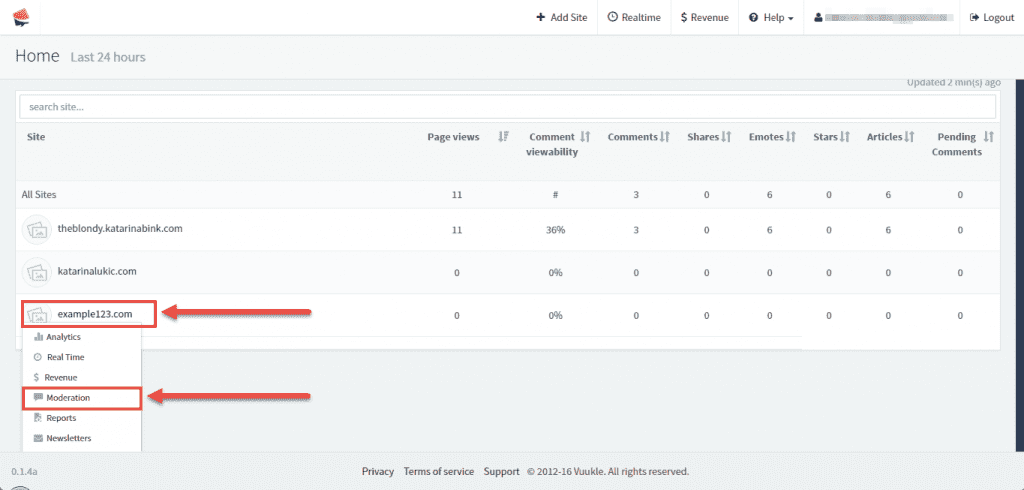
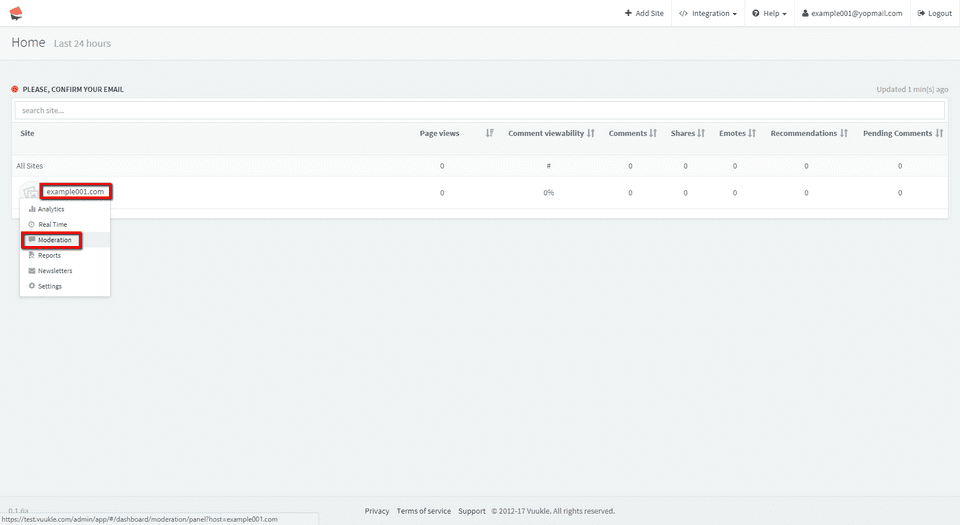
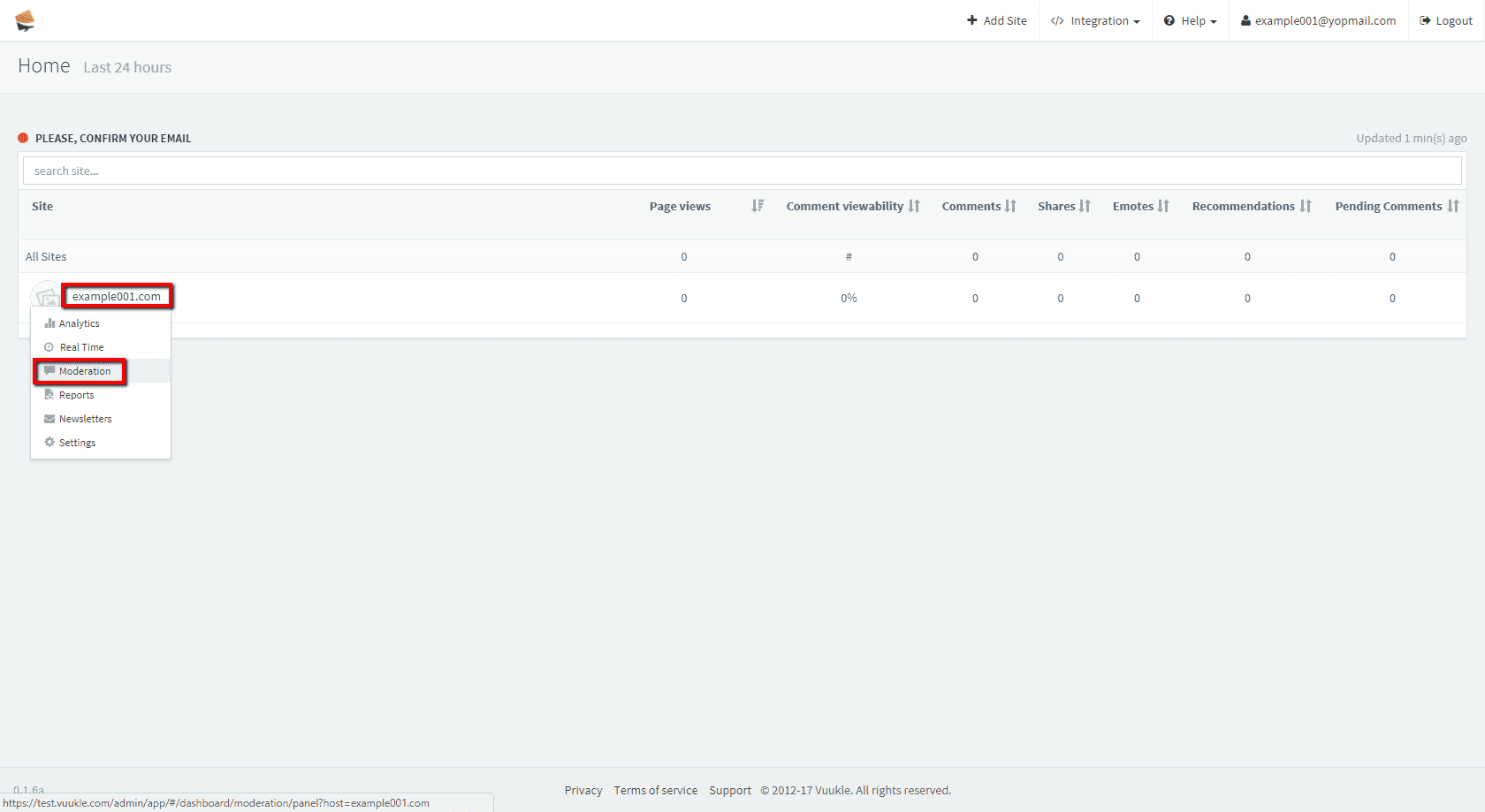
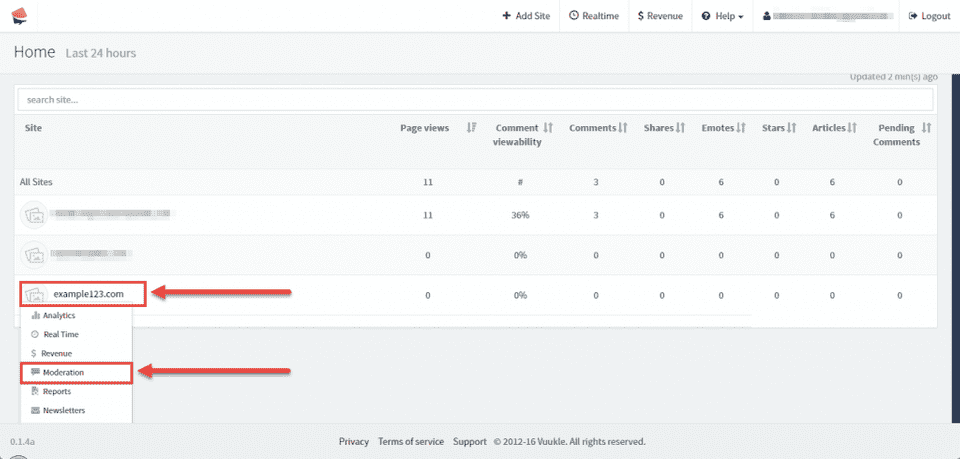
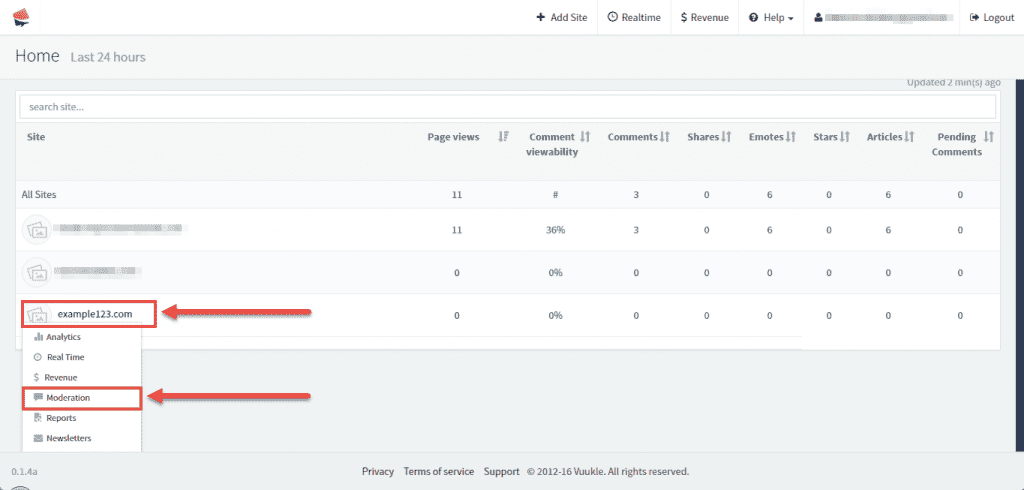
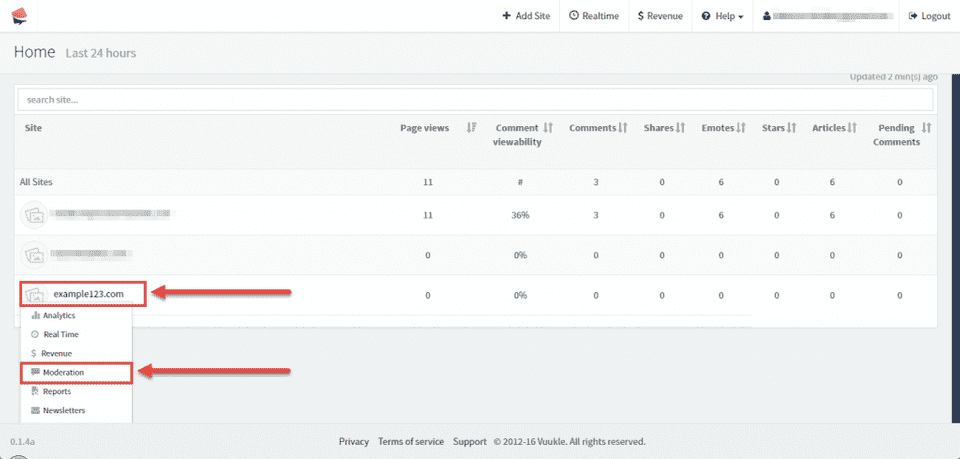
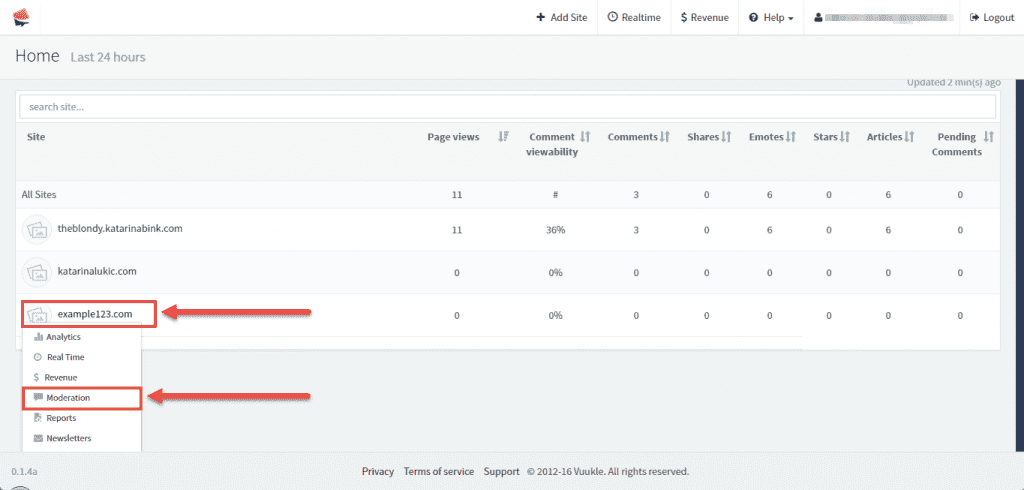
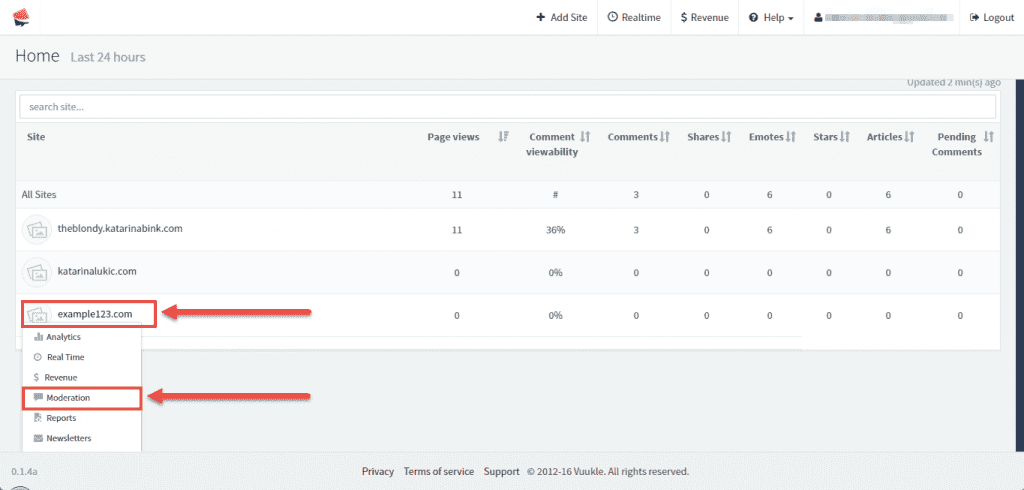
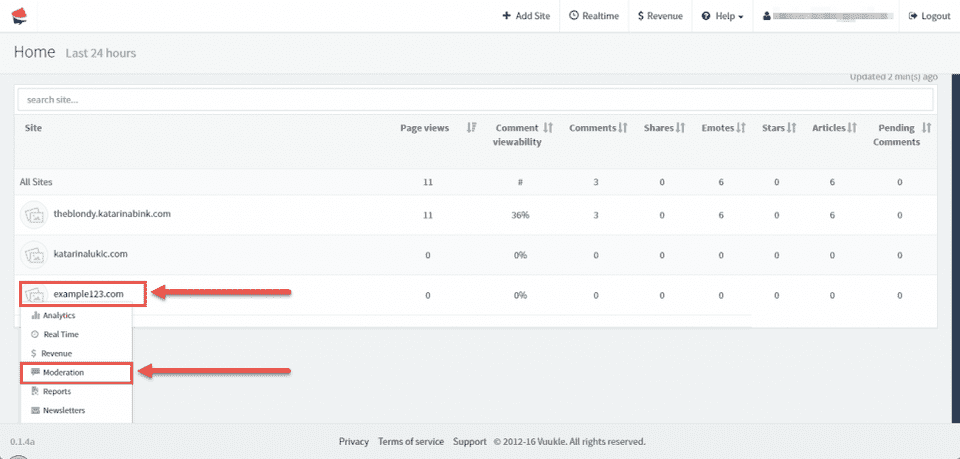
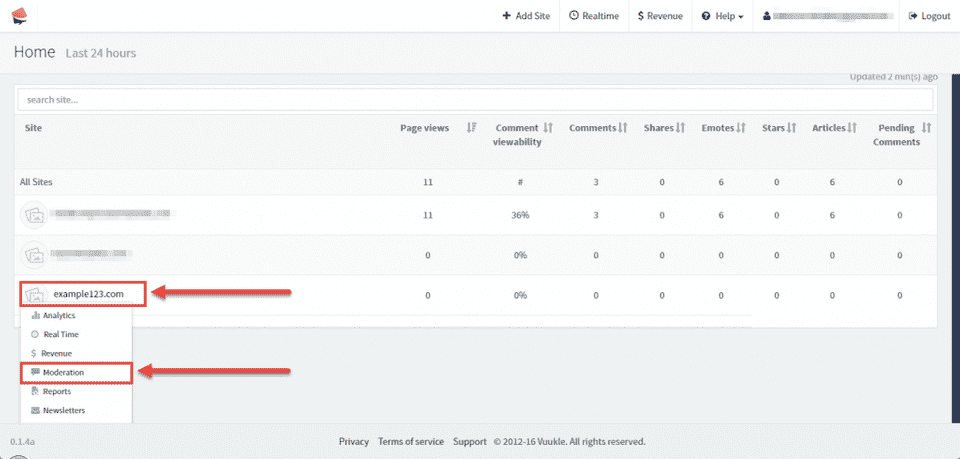
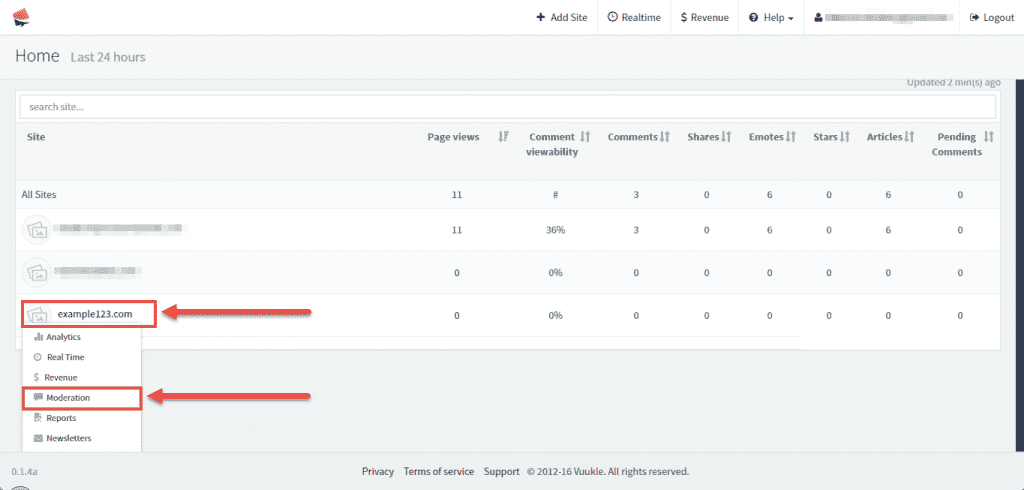
After that, on main page select site that you want to moderate comments for, and select Moderation from menu.
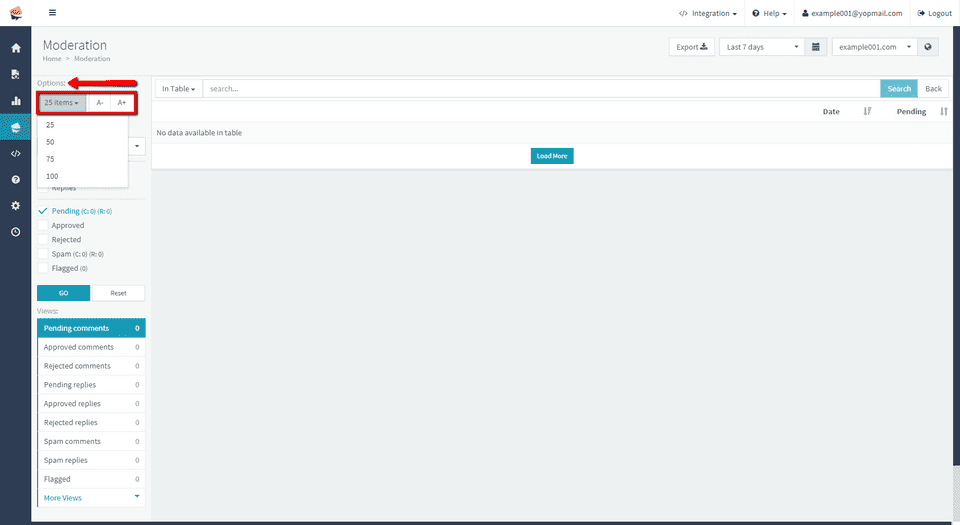
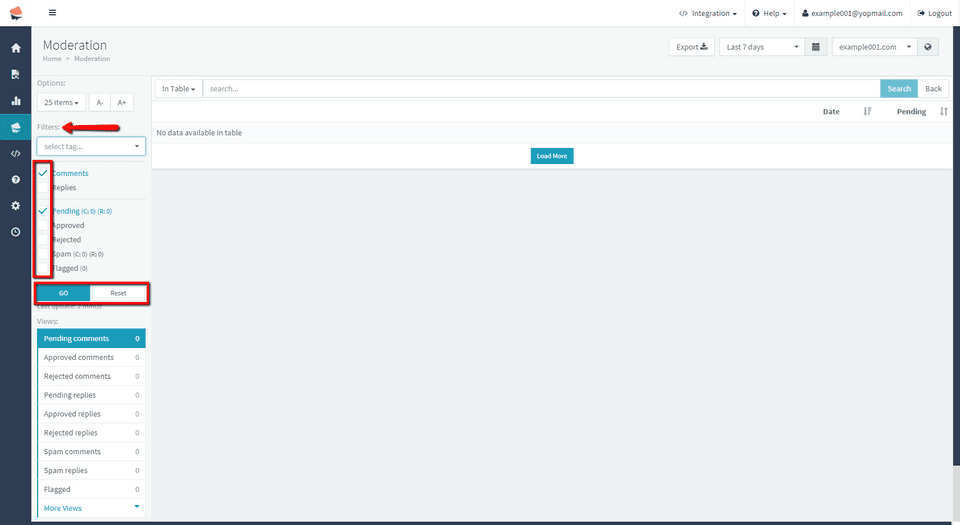
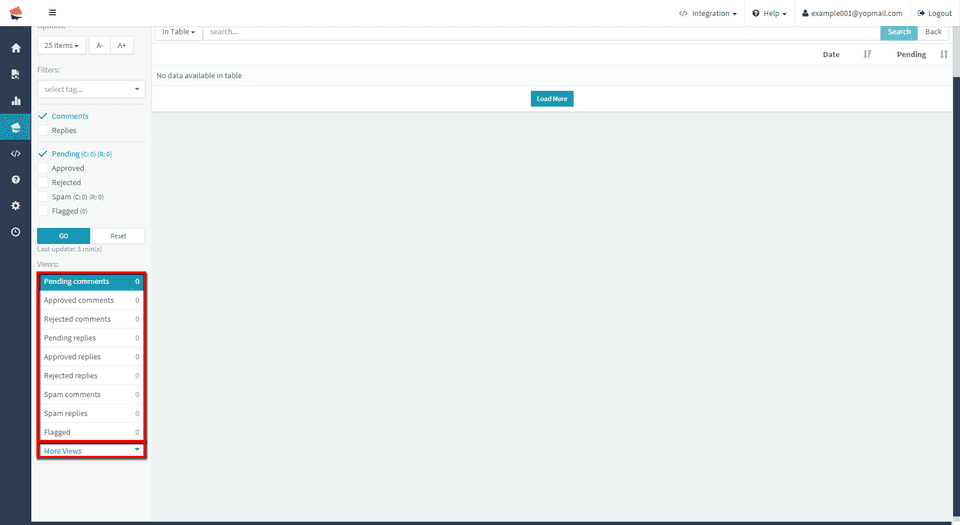
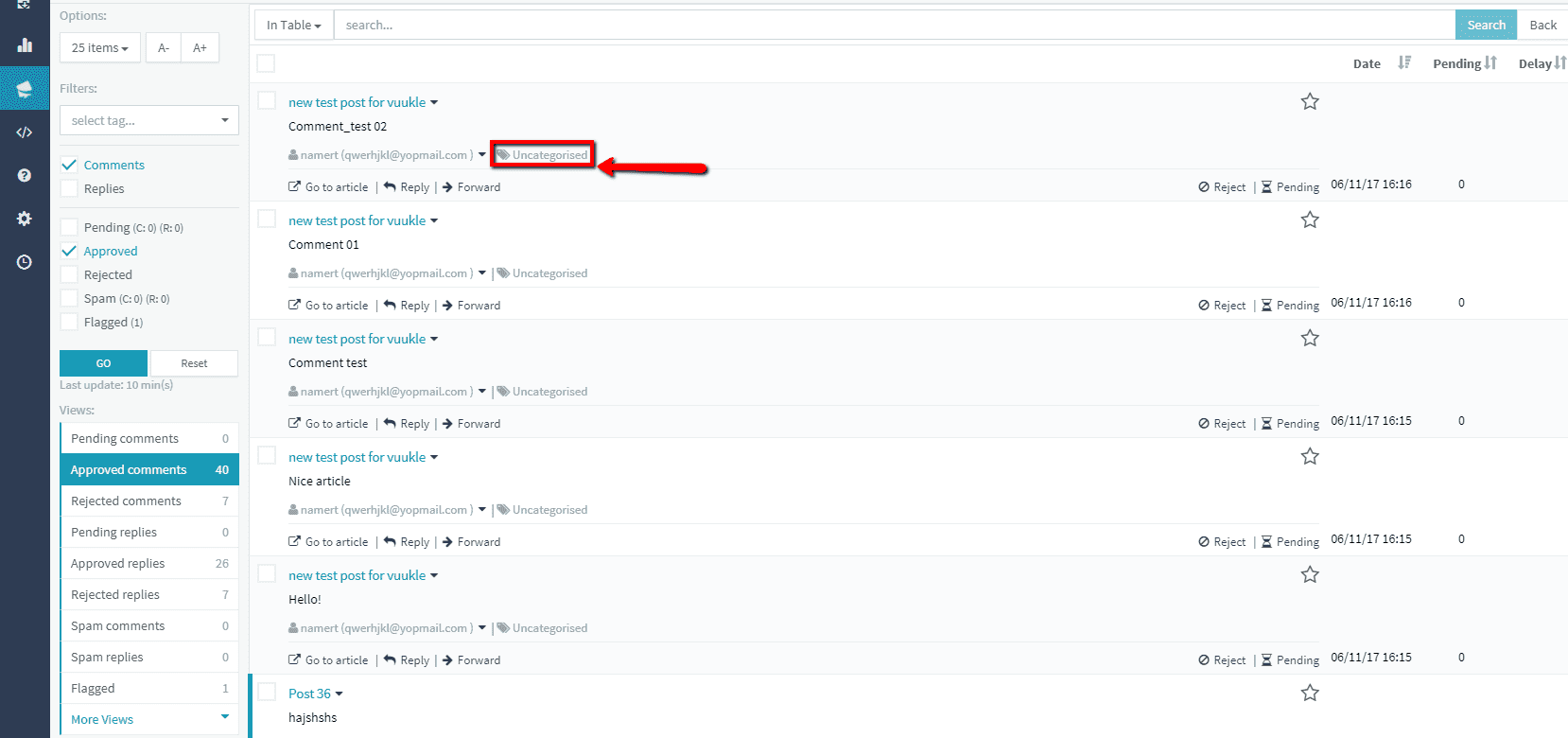
Using options, filters and views on the left you can manipulate with various view options of your comments. When your comments are listed, you can chose which comment to approve or reject, block specific commenters, tag or edit comments.
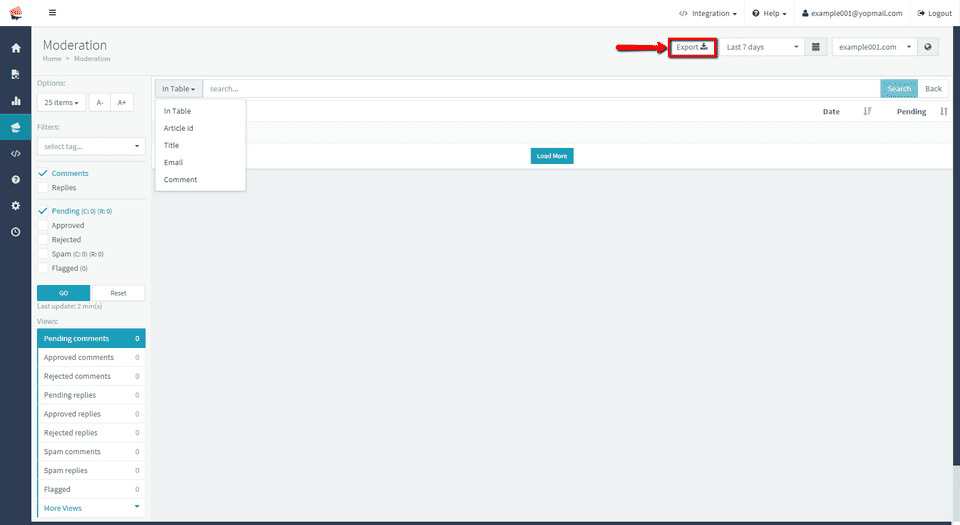
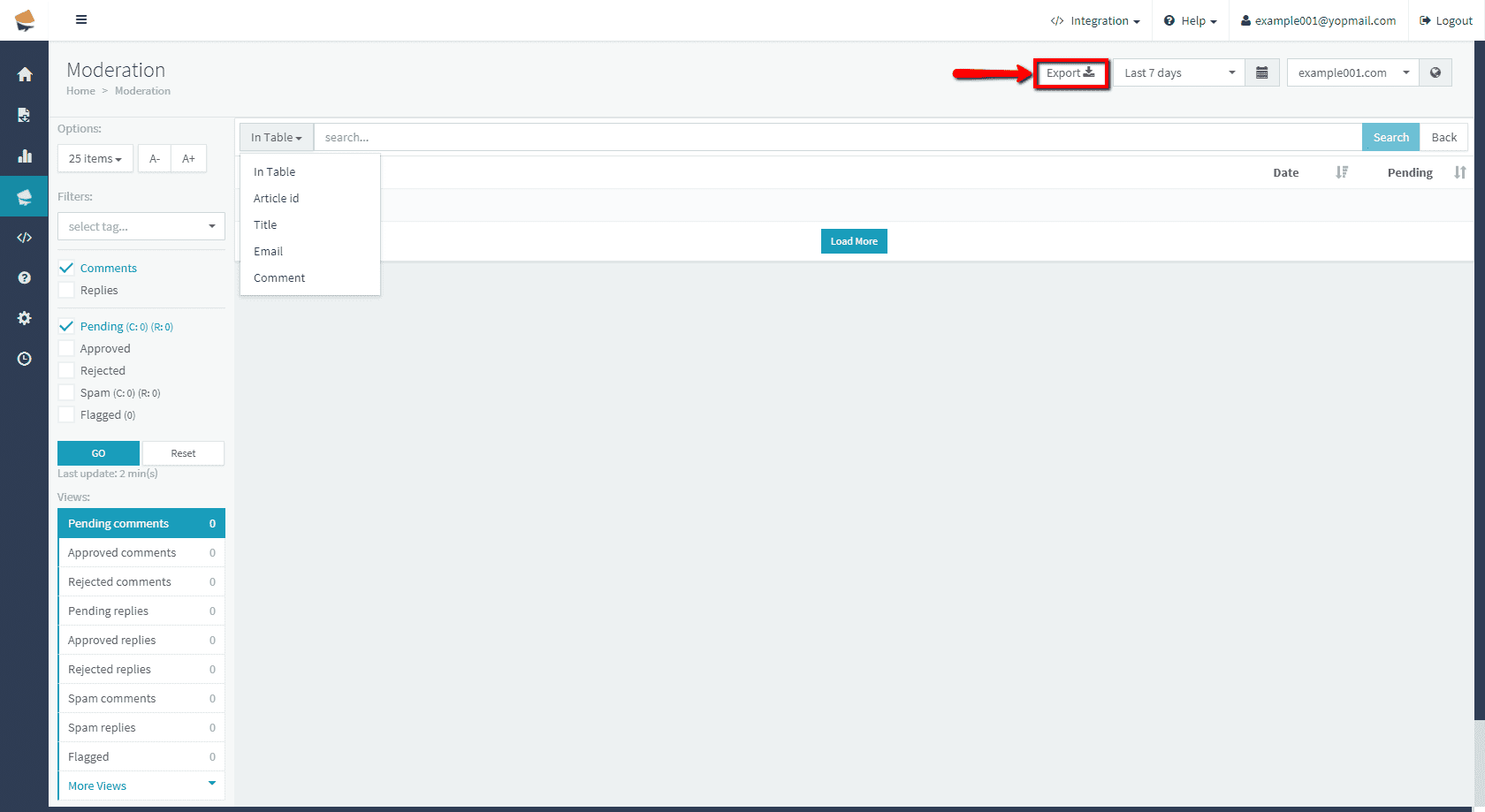
You can search your comments using different criteria and export your comments to .csv. file.
Step by step instructions with screenshots – moderate comments on Vuukle
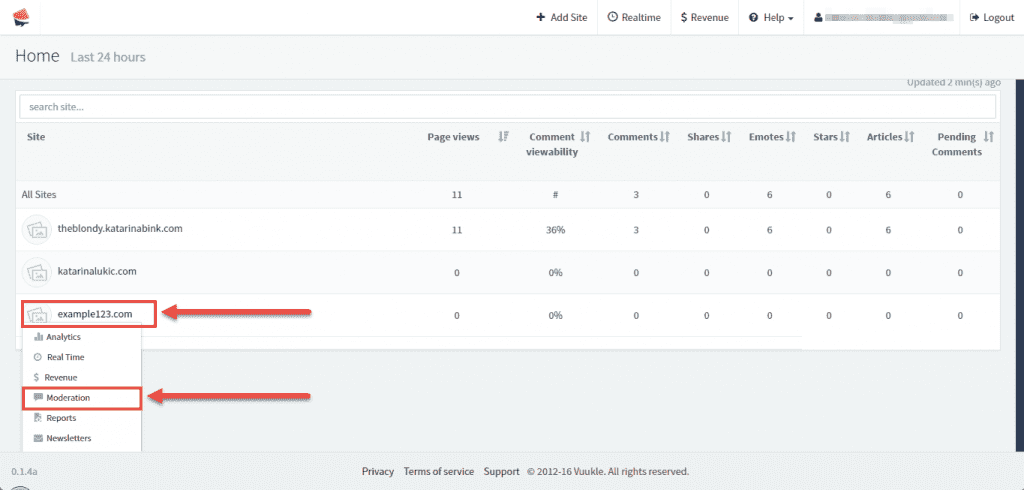
- On main page, select site where you want to moderate comments, and choose Moderation
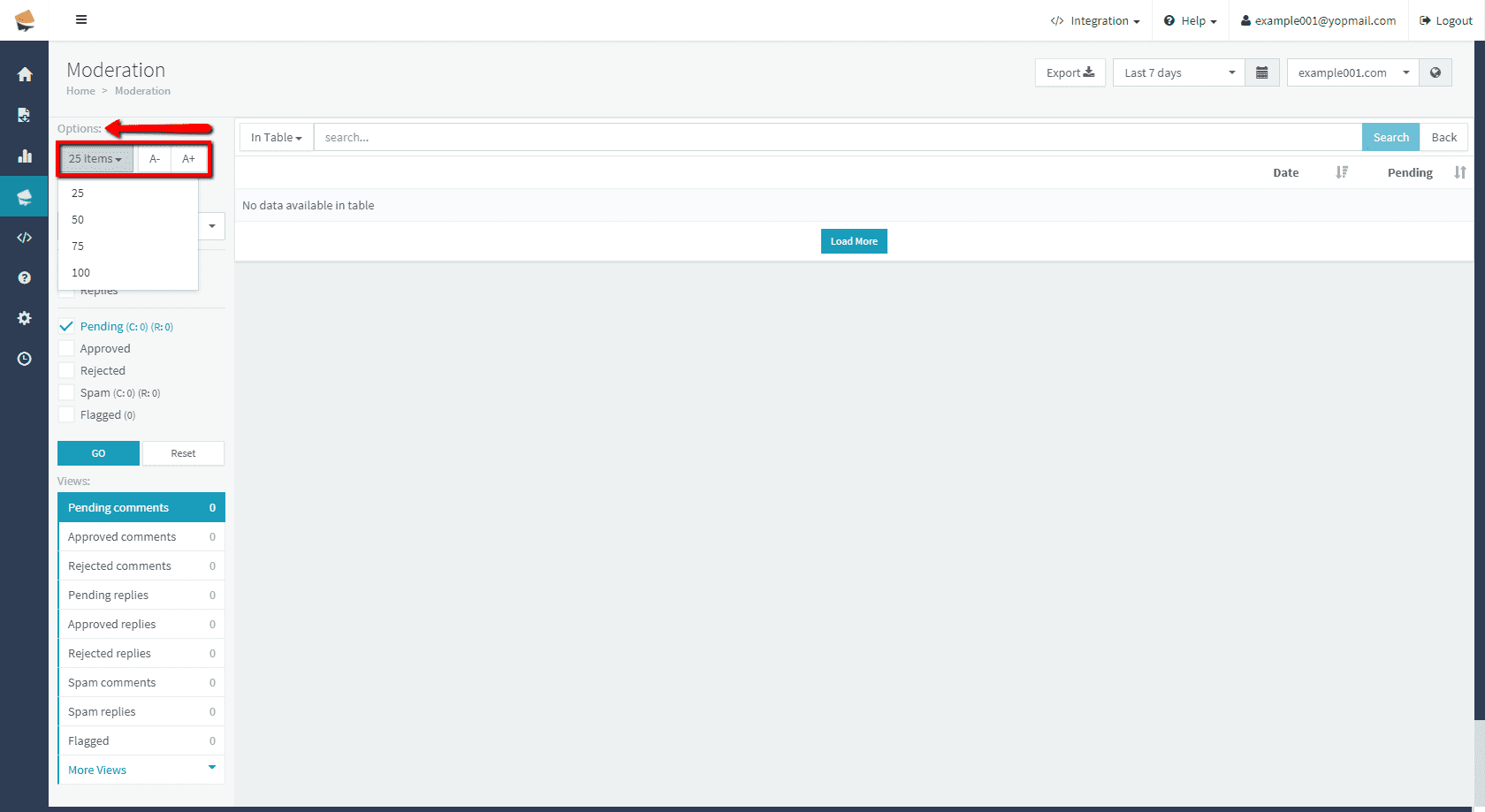
- In Options section, you can choose how many comments to show on the page. Here you can also increase or decrease font size.
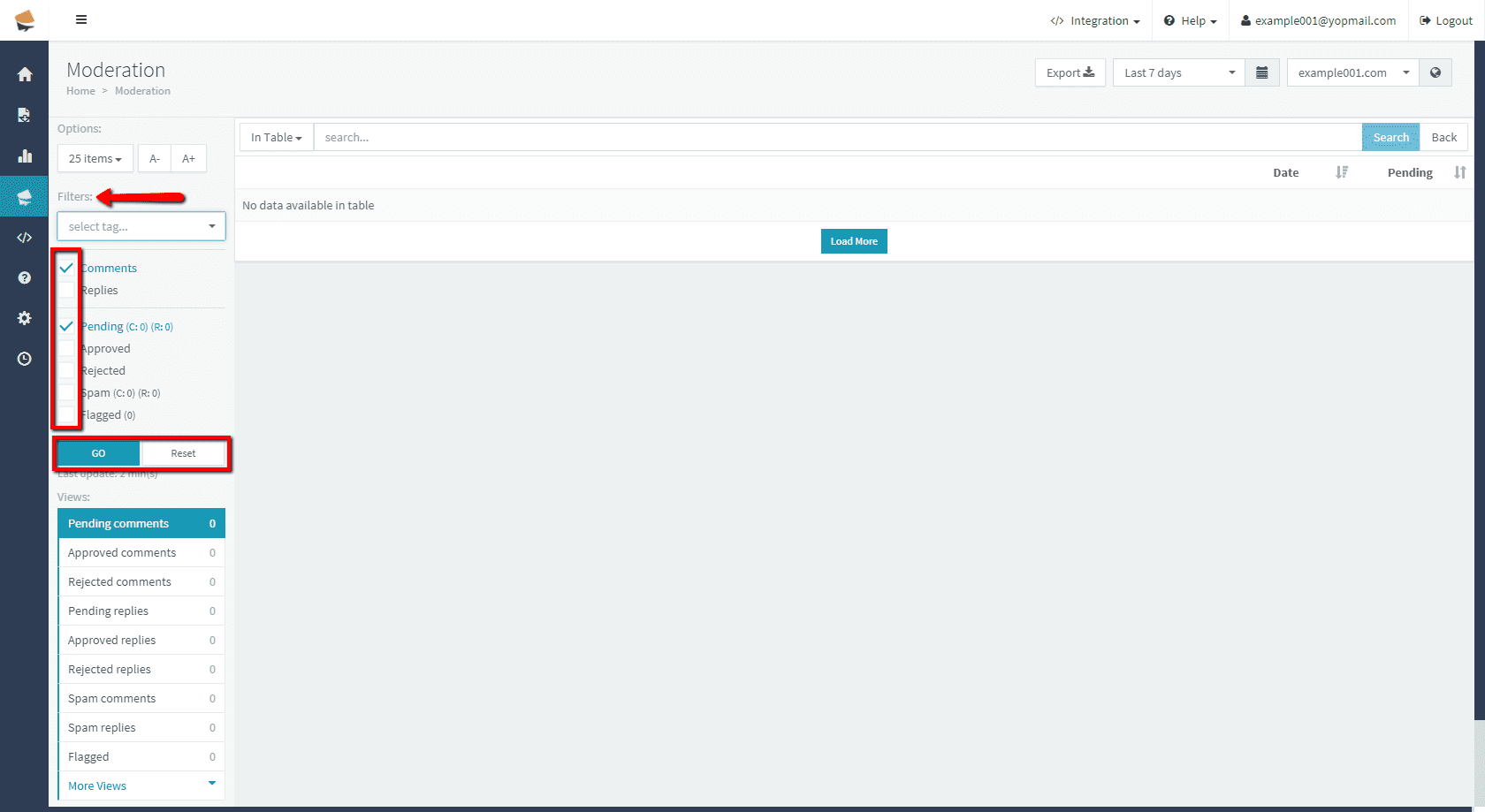
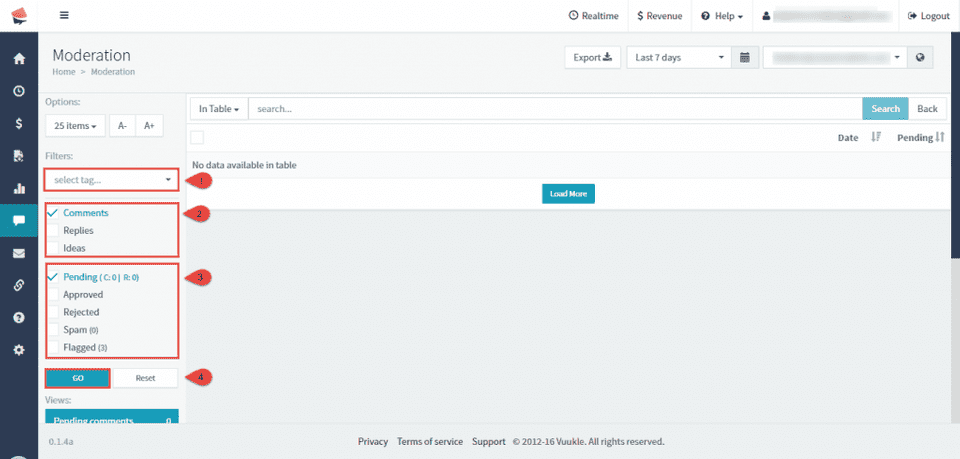
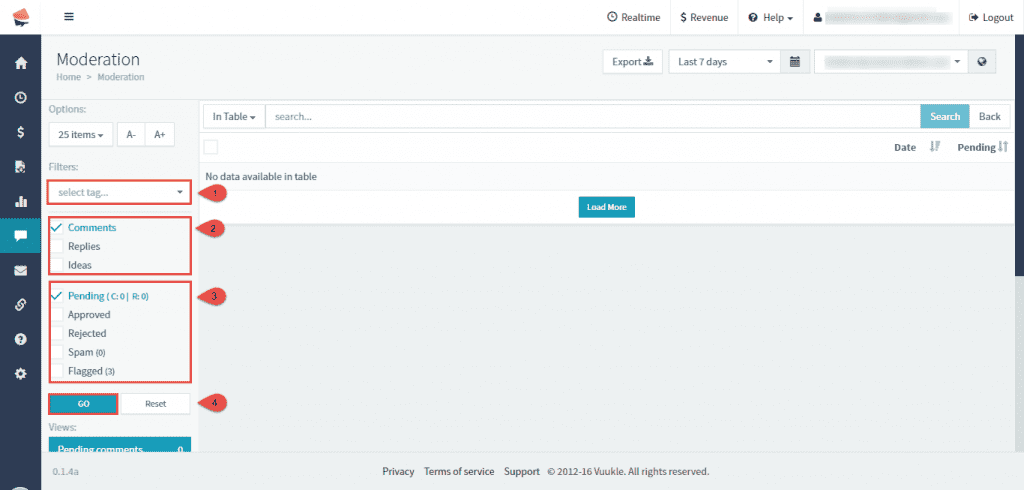
- In Filters section, you can filter your article list by tags, or choosing category to show comments from. Click on Go to apply selection or Reset to reset filters.
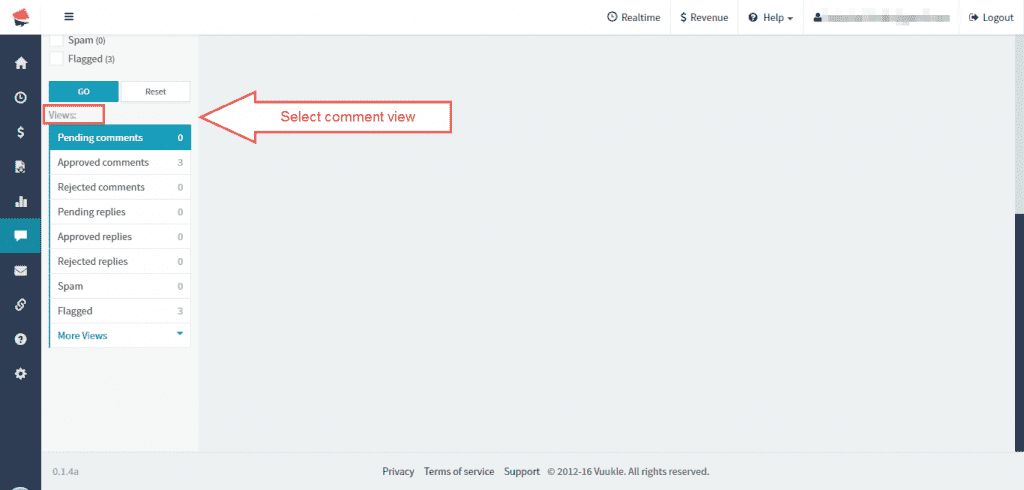
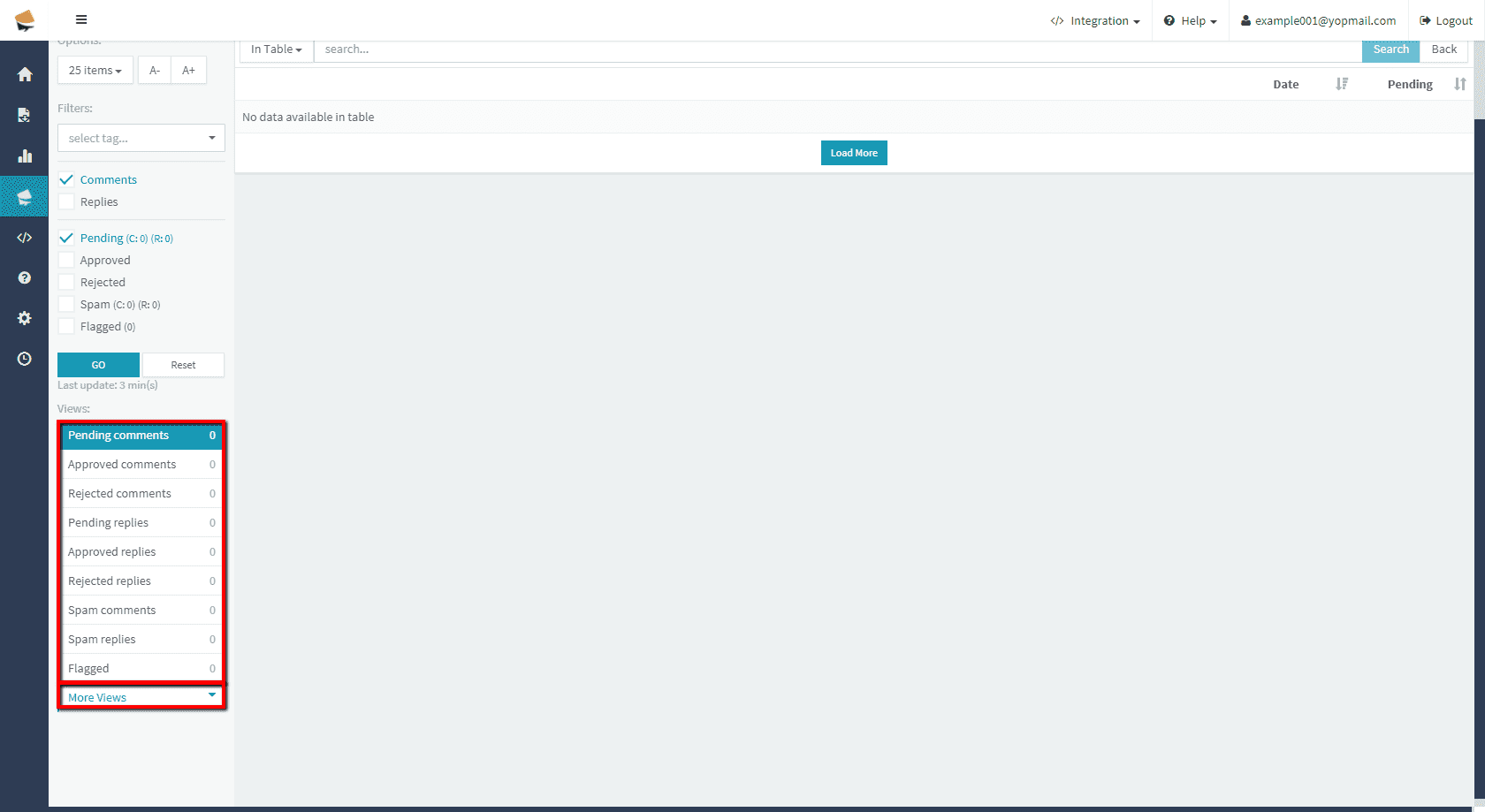
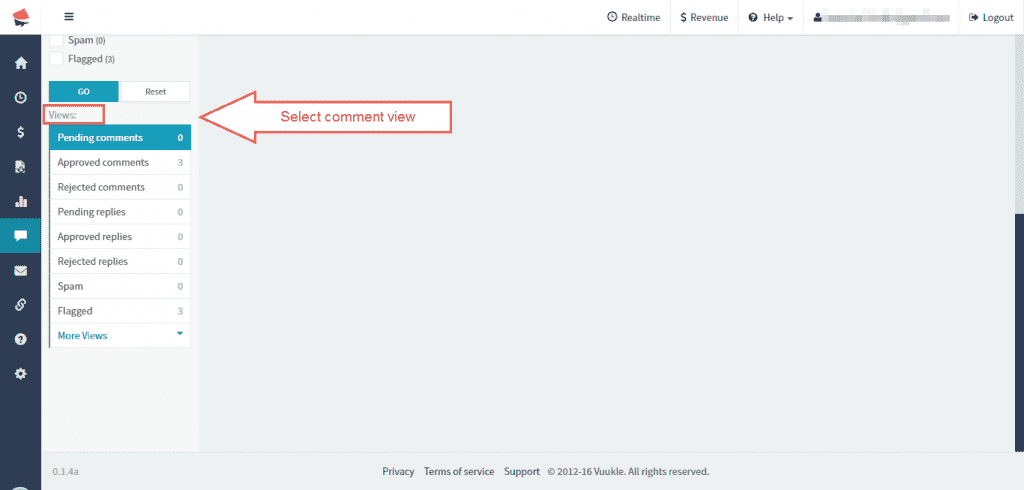
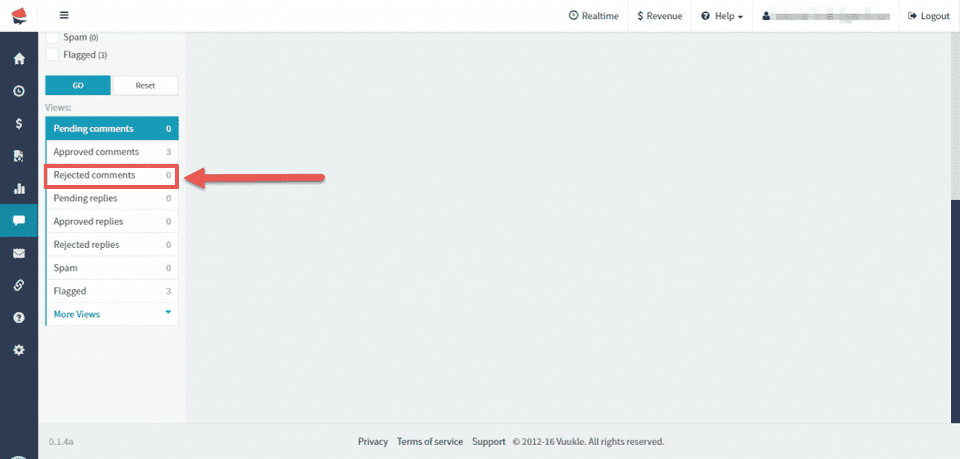
- In Views section you can choose one of predefined views of comments. Click on More Views to expand this list.
-
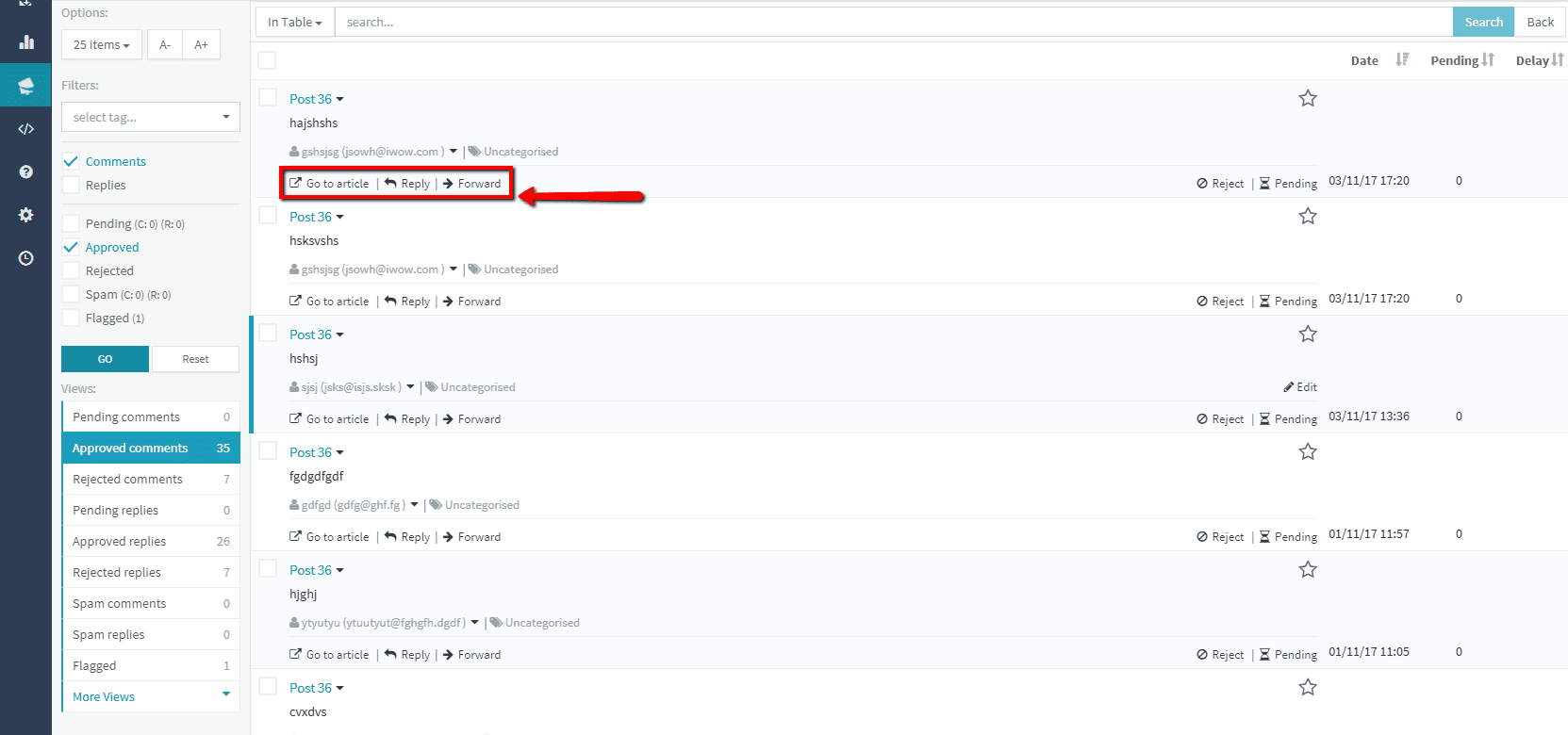
Under each comment you have options that allow you to go to article where the comment is written, reply on comment or forward the comment using your mail client.
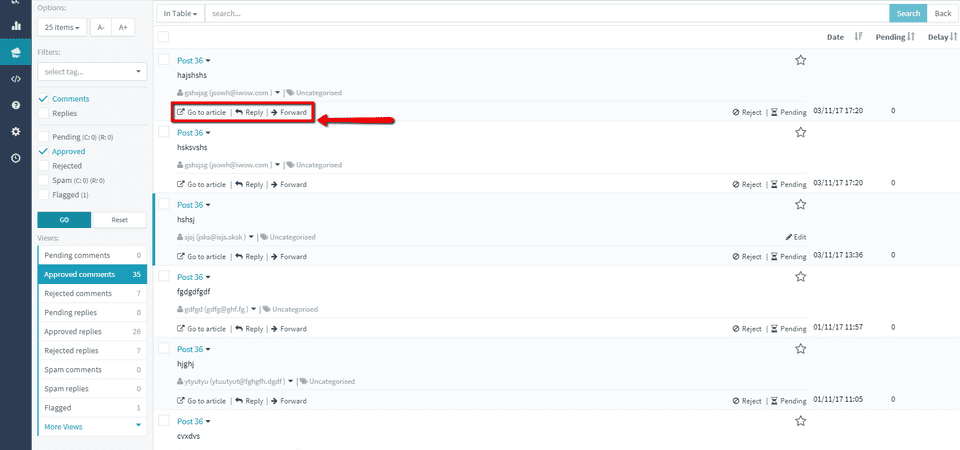
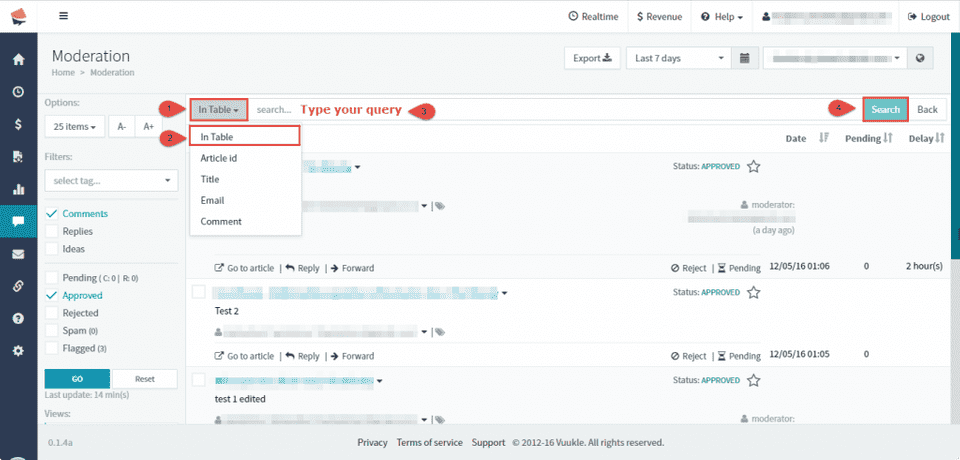
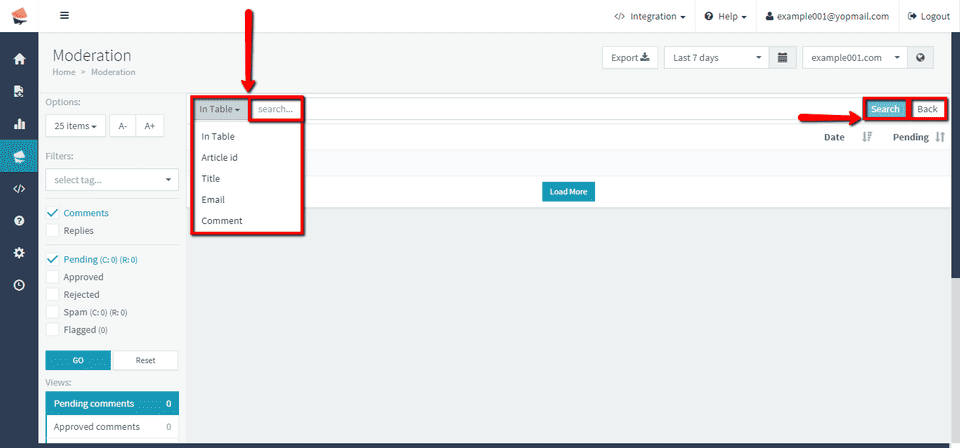
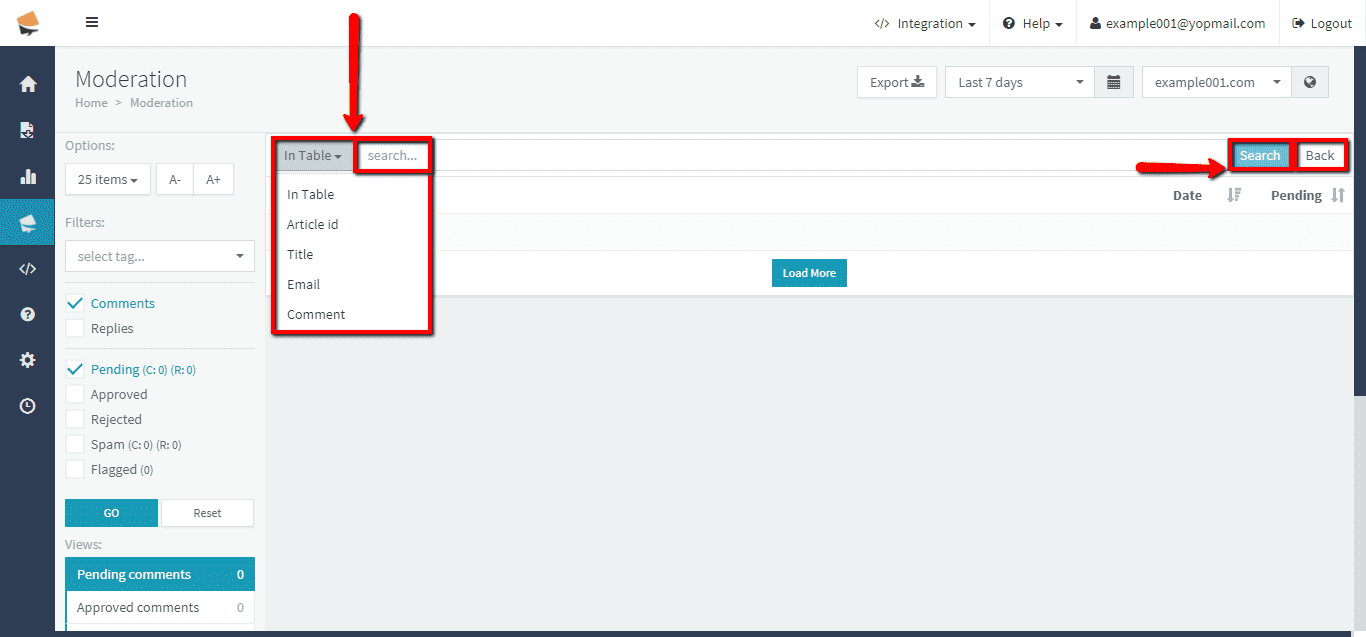
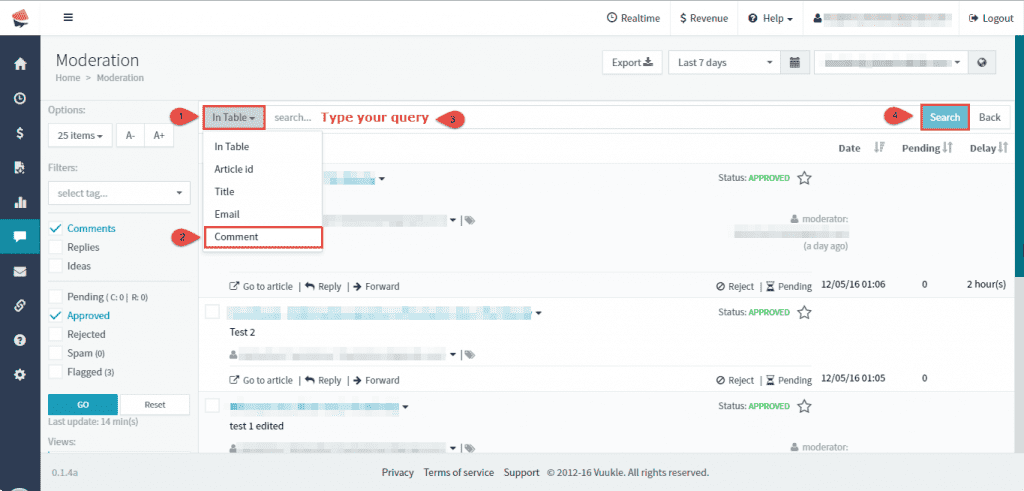
- You can search comments by typing your query in search and choosing one of offered options where to search (in table, using article id, title, commenters’ email or comment text)
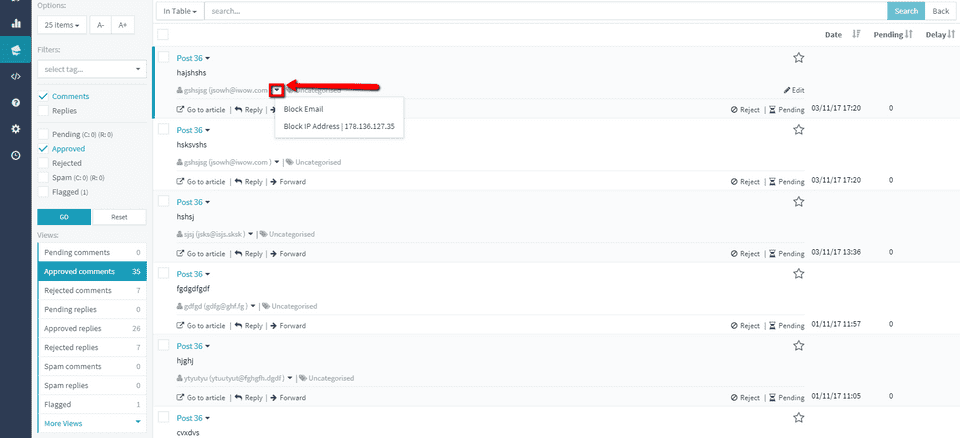
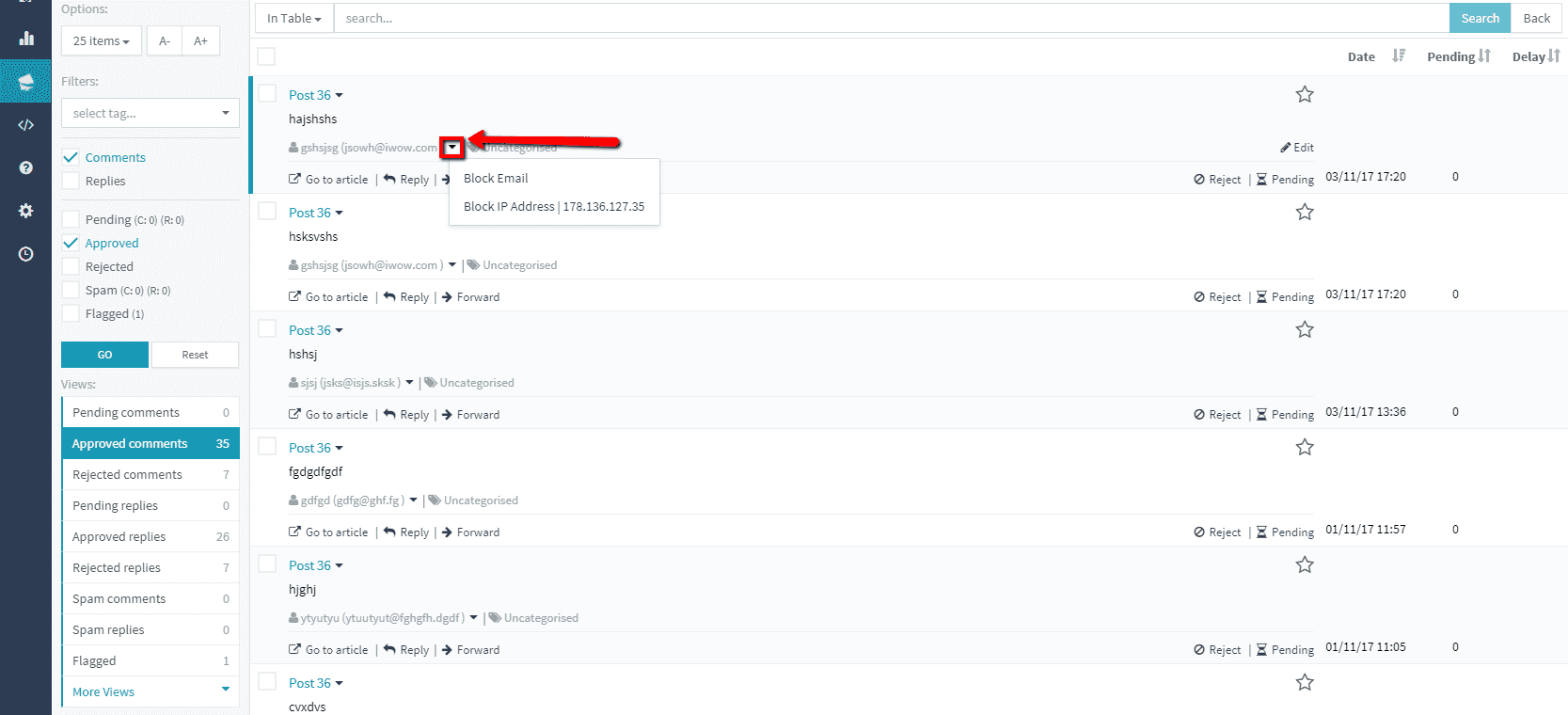
- Clicking on arrow beside commenters’ name and email addres, you can either block IP address or email address of that commenter.
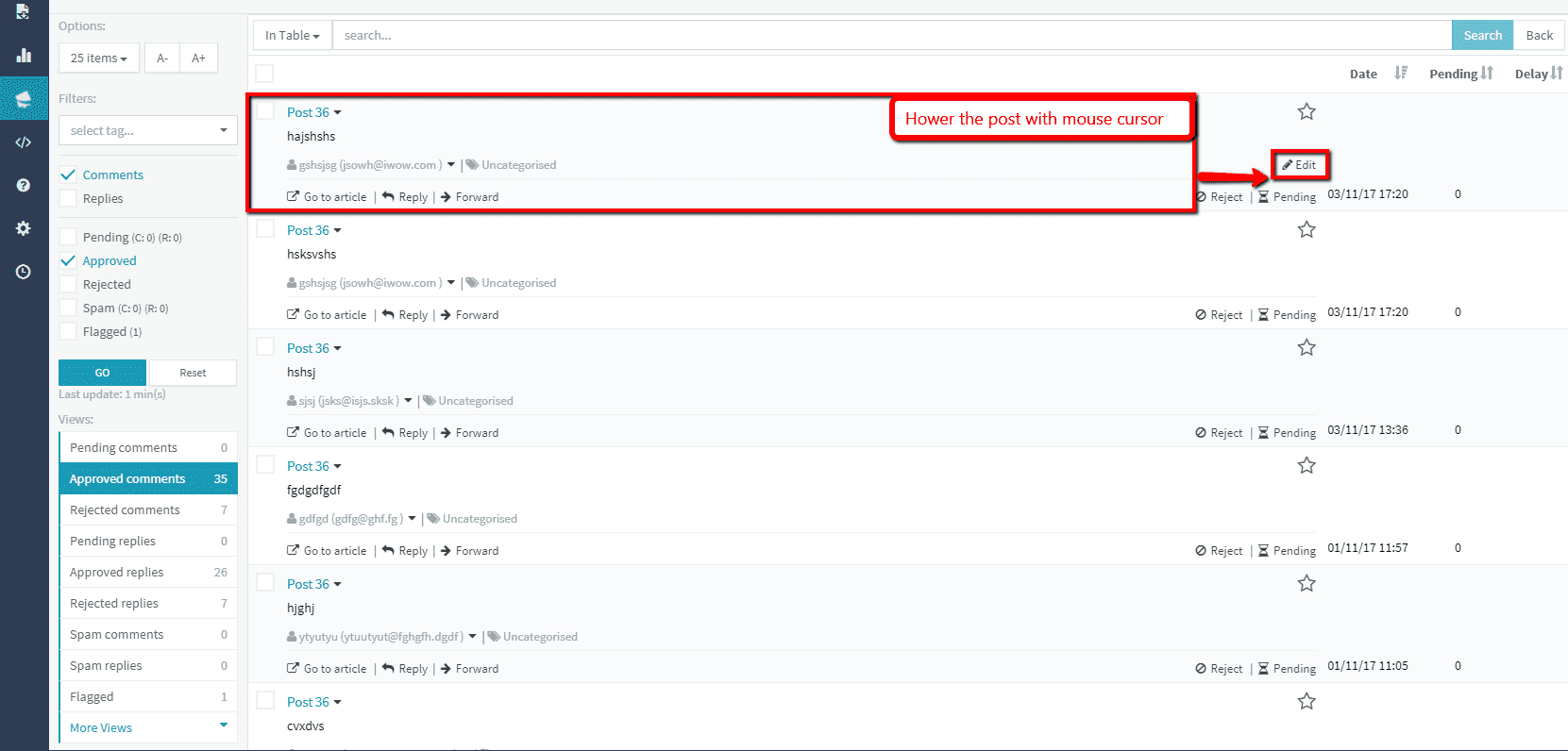
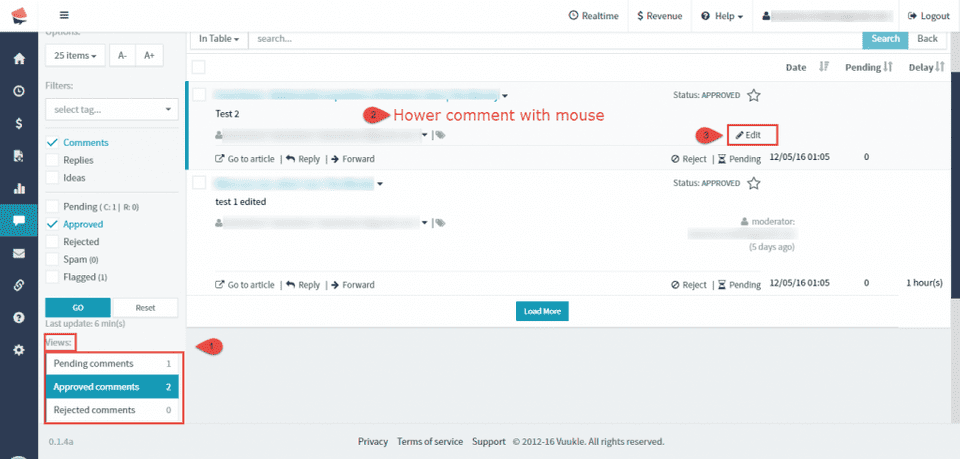
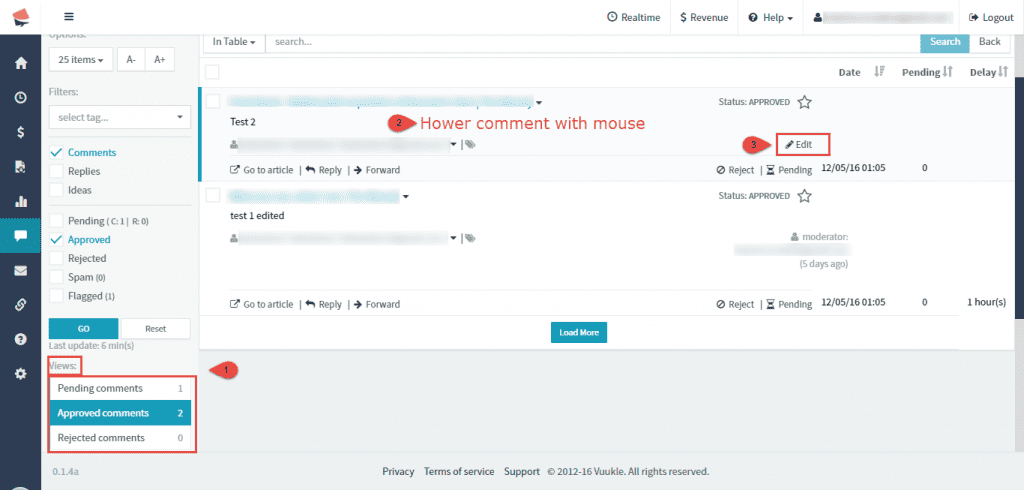
- If you hower specific post with mouse, on the right side you will see Edit button. Click on it to edit comment.
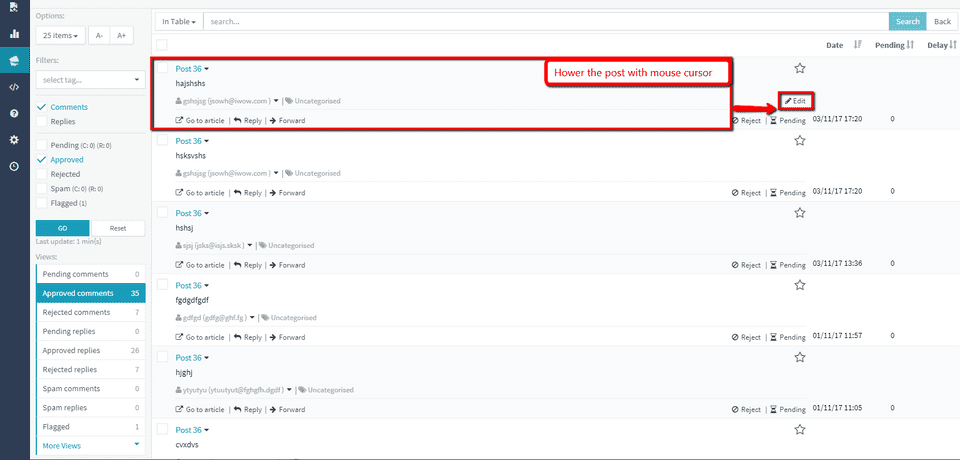
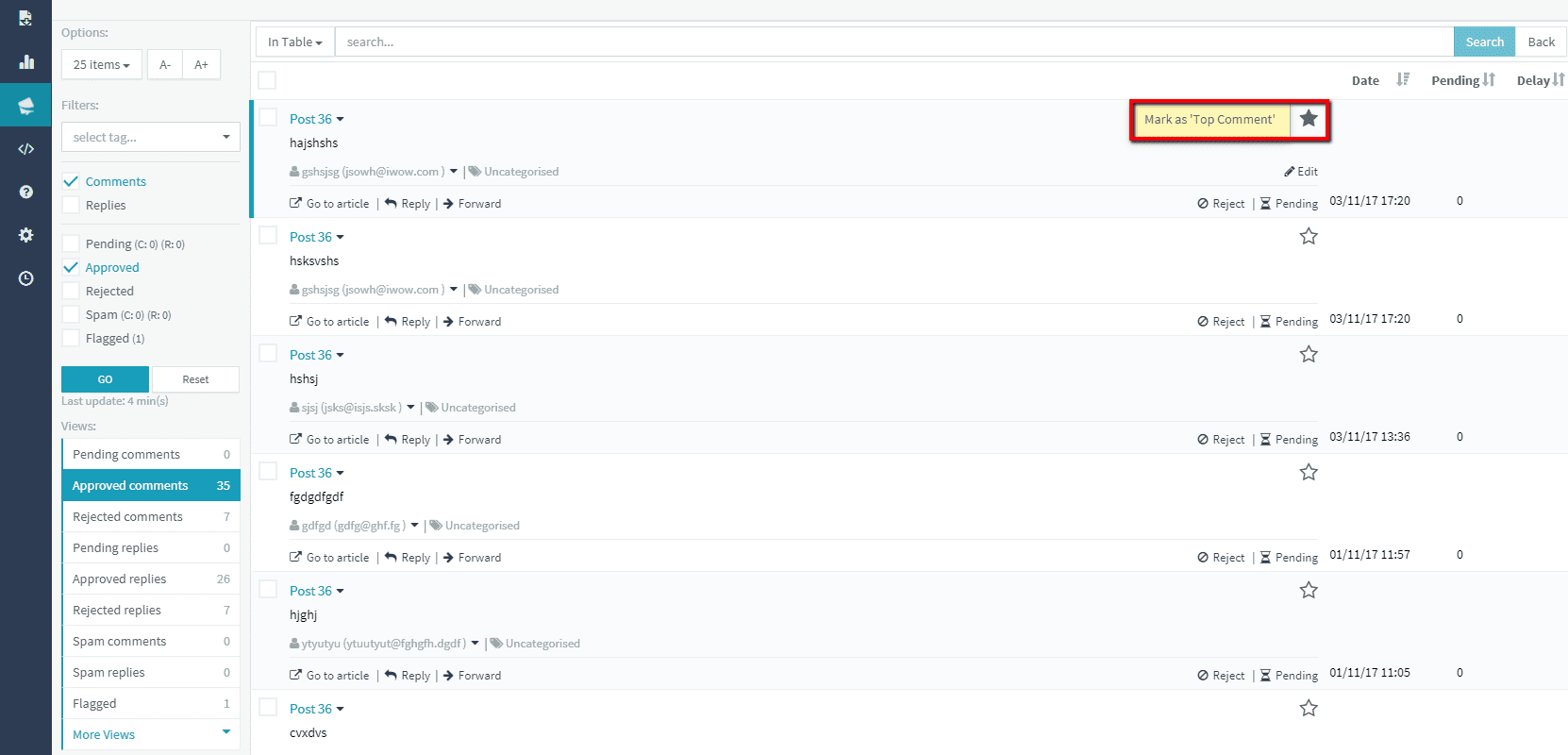
- Clicking on star will mark comment as ”Top Comment”

- You can export your comments in .csv clicking on Export button.
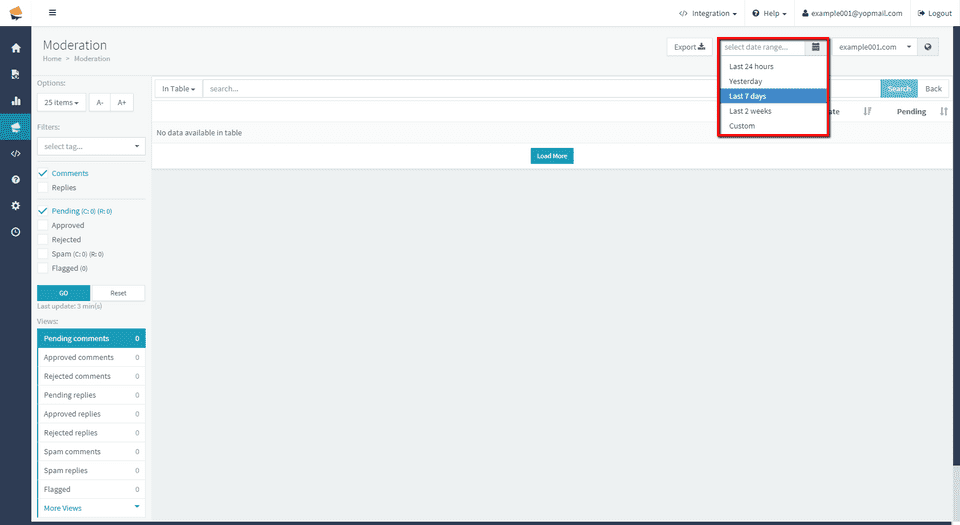
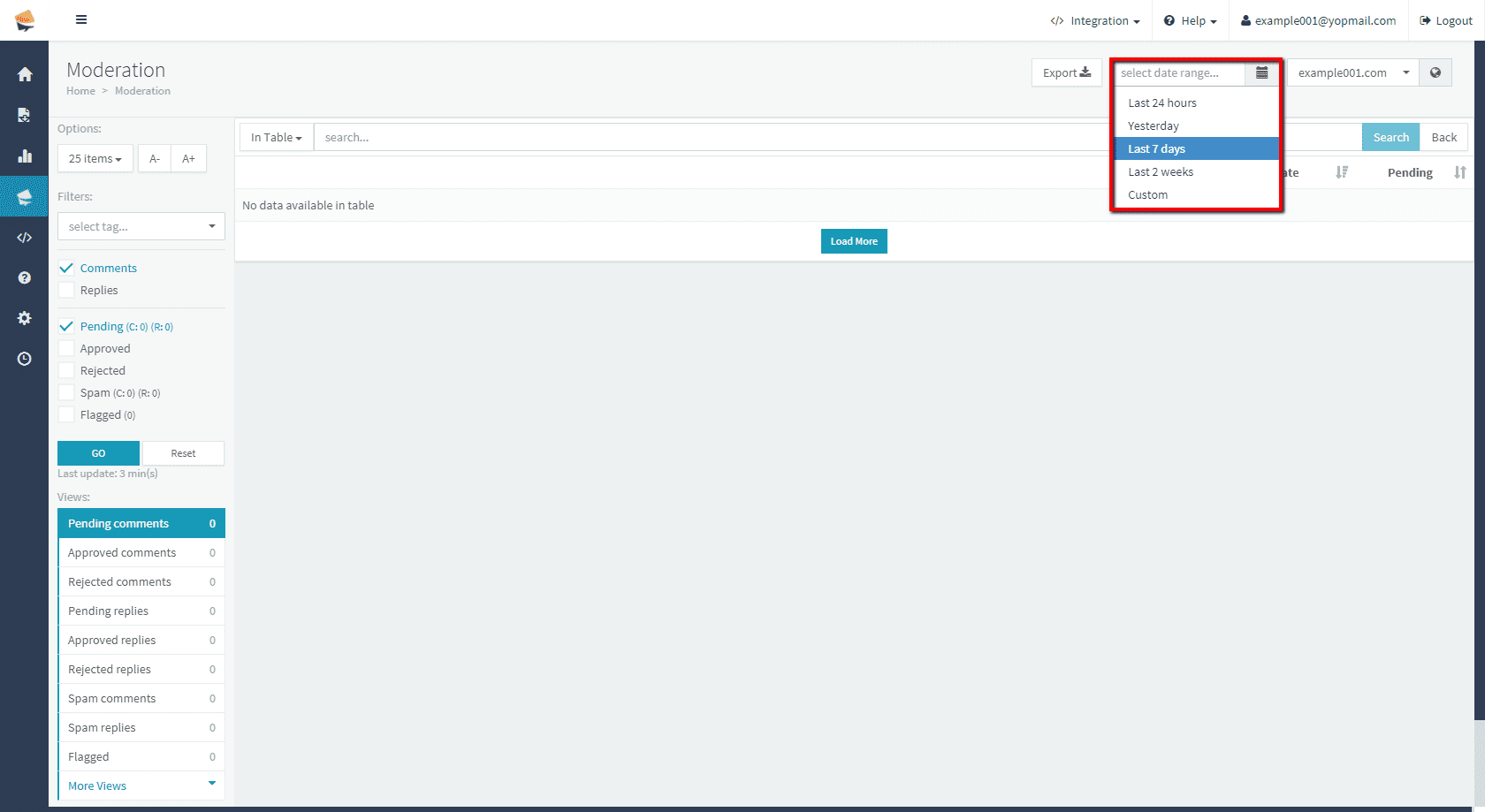
- Clicking on Select date range field you can choose how old comments should be
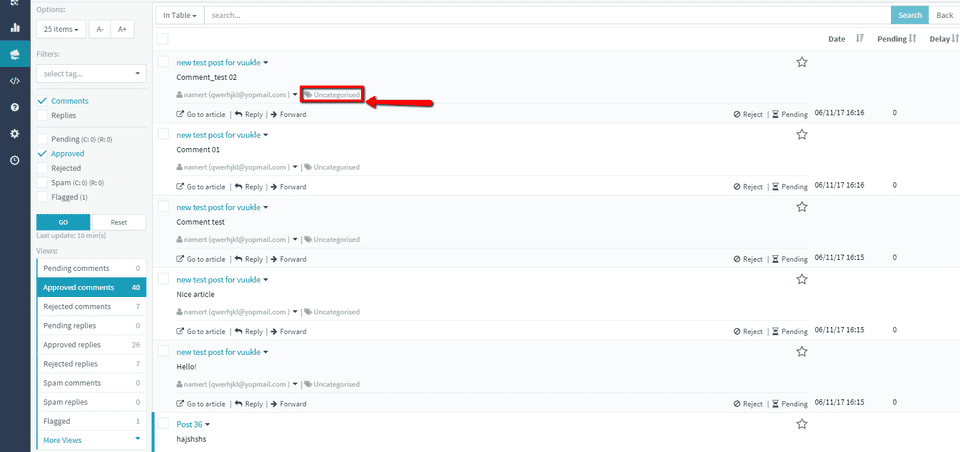
- Clicking on Tag icon you can add tags to your comment, and use it later in search.
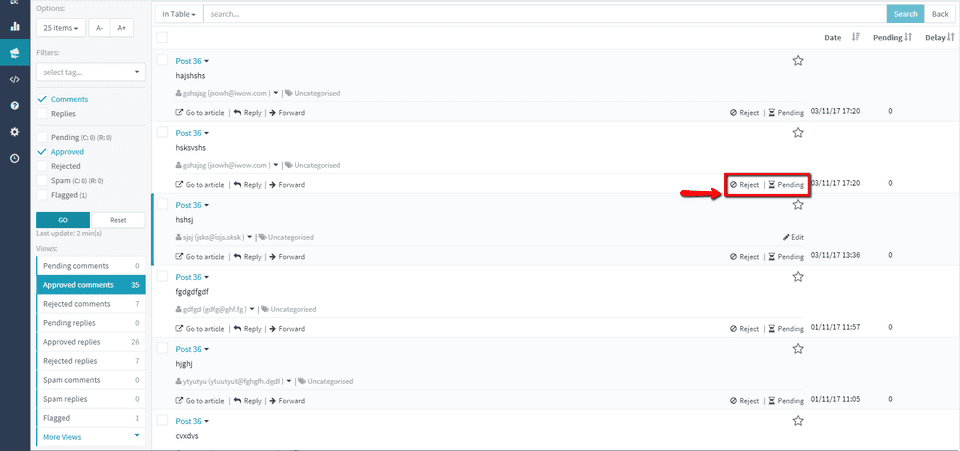
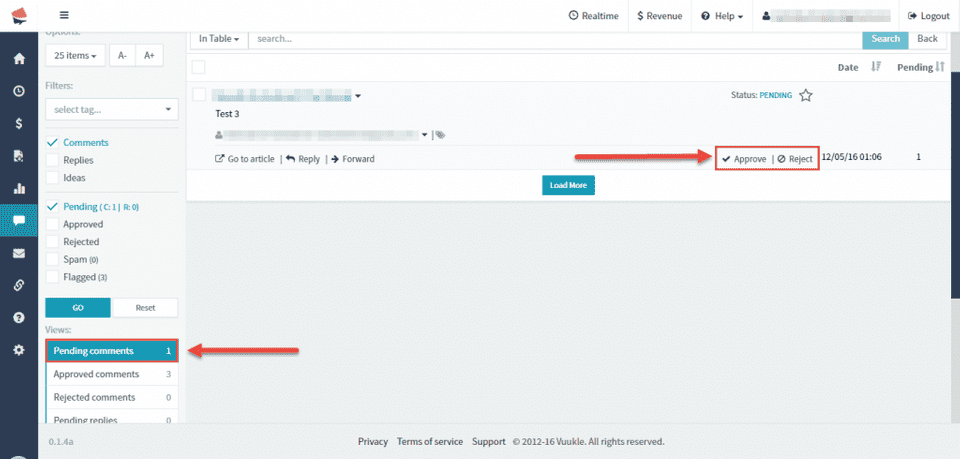
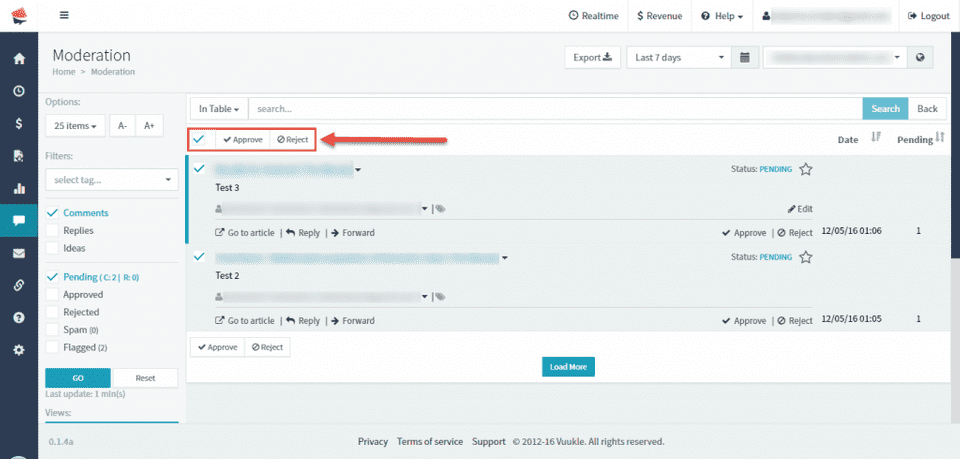
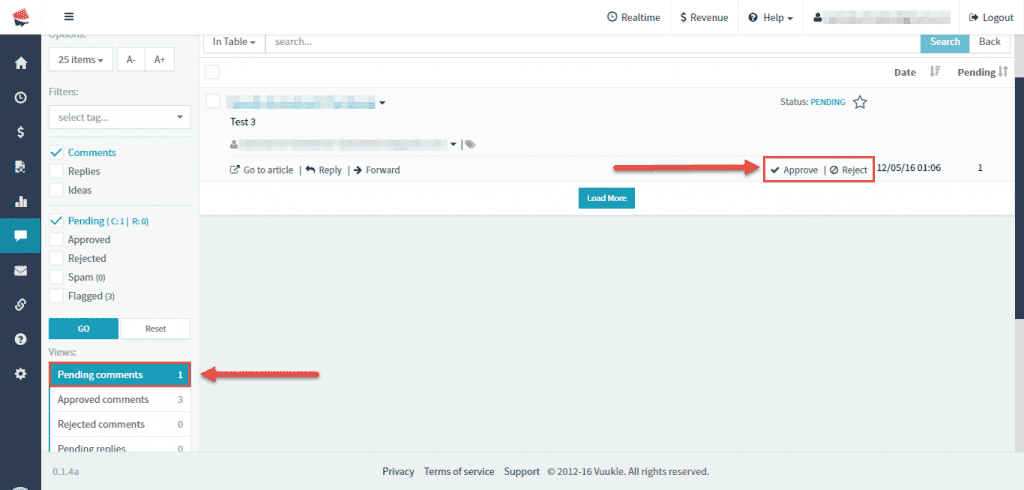
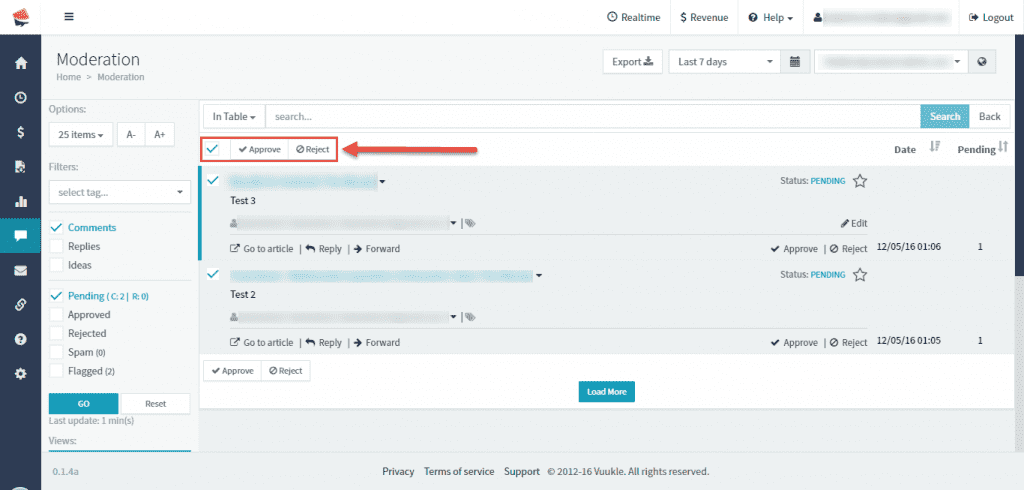
To approve or reject comments, go to home page of your admin dashboard, select site you wish to moderate comments on, and choose Moderation. Under View section, select Pending comments. Click on Approve or Reject button on the bottom left side of each comment. You can also mark few or all comments using check boxes and click on Accept or Reject button that will show on top of listed comments.
Step by step instructions with screenshots – approve or reject comments
-
On home page of your admin dashboard, select site you wish to moderate comments on, and choose Moderation
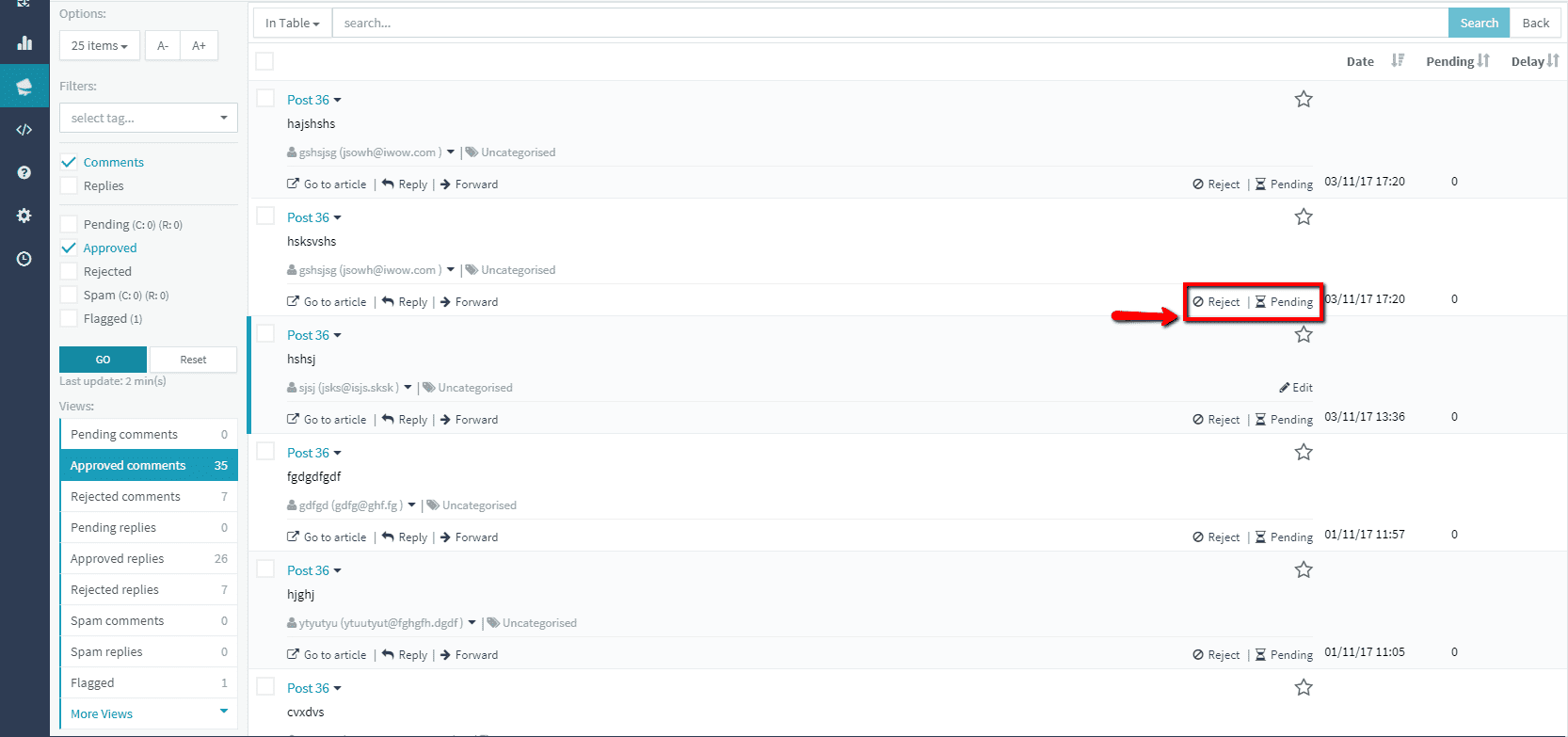
- Under View section, select Pending comments and click on Approve or Reject on the bottom left side of the comment.
- You can also mark few or all comments using check boxes and click on Accept or Reject button that will show on at the top of listed comments.
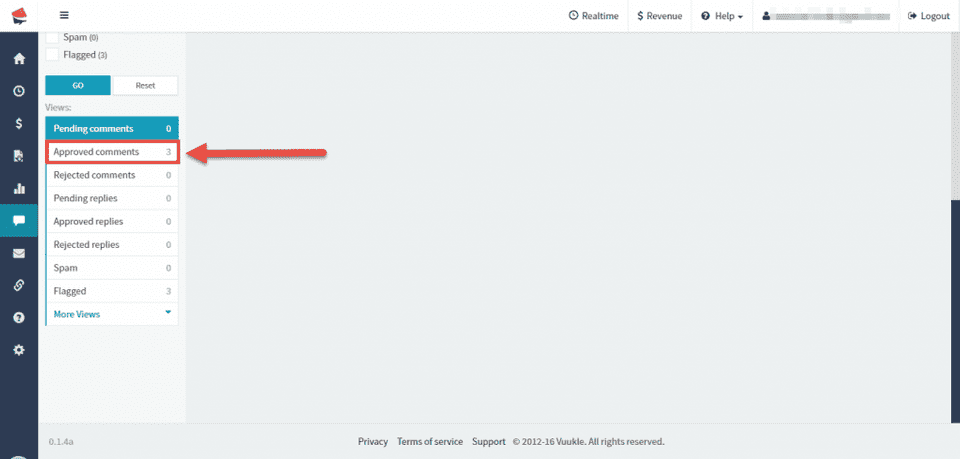
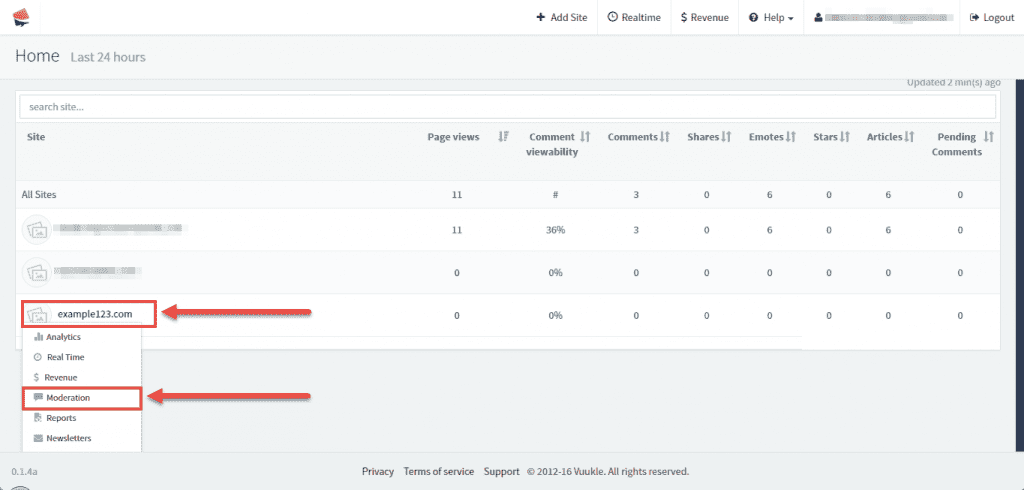
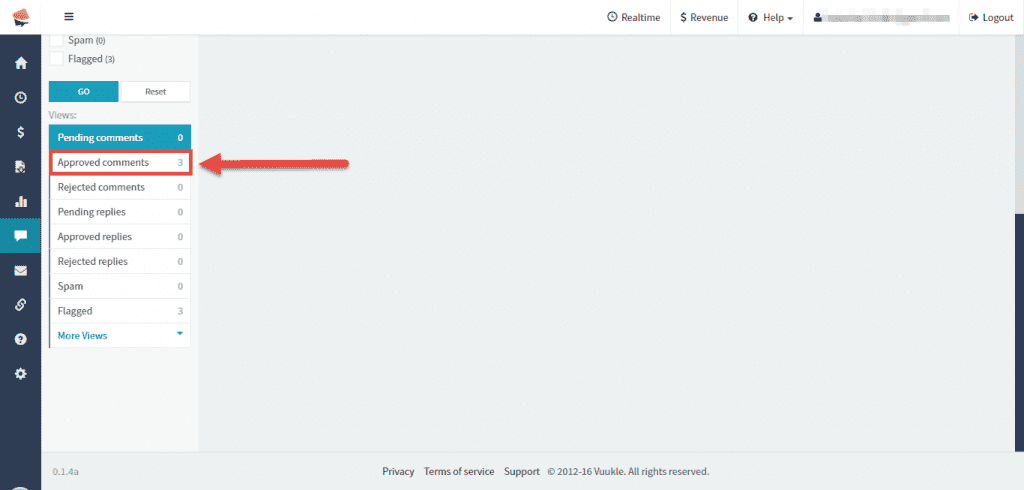
Step by step instructions with screenshots – approved comments
- Go to home page of Vuukle dashboard, select site, and click on Moderation
- Scroll down to View and click on Approved Comments
Step by step instructions with screenshots – Check pending comments
-
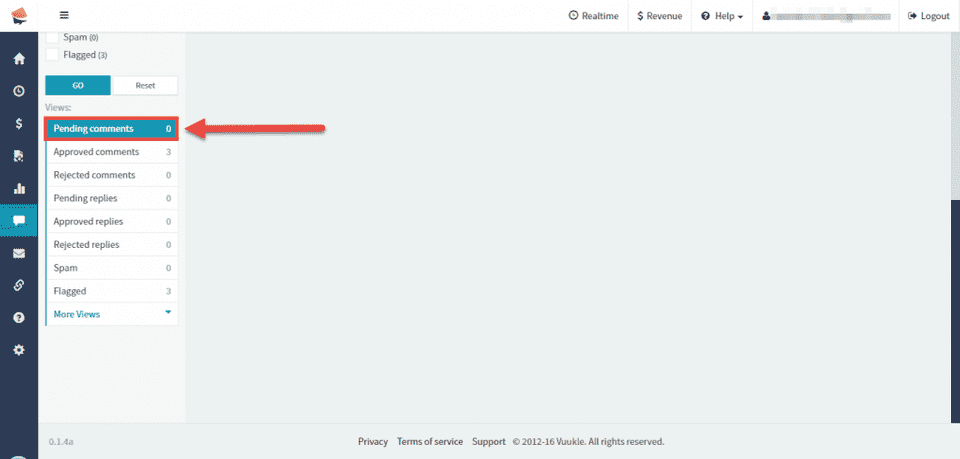
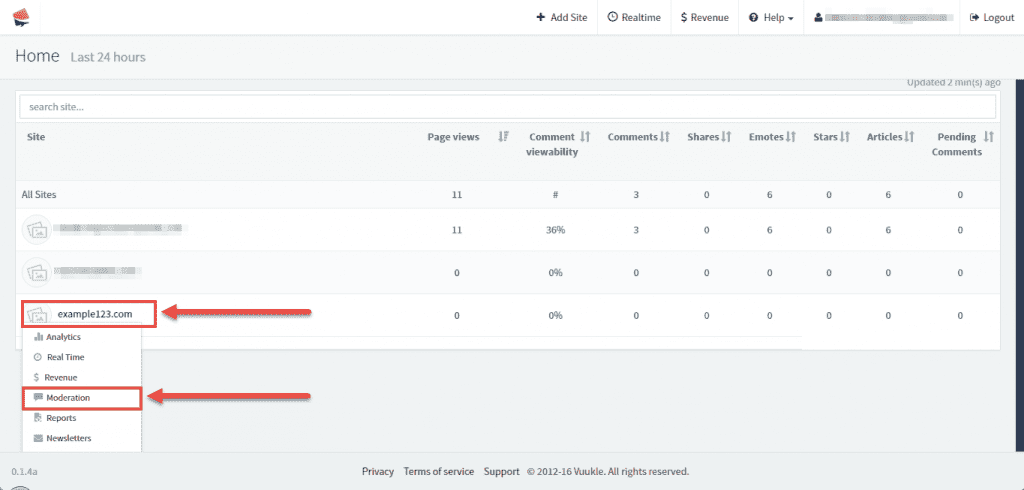
Go to home page of Vuukle dashboard, select site, and click on Moderation
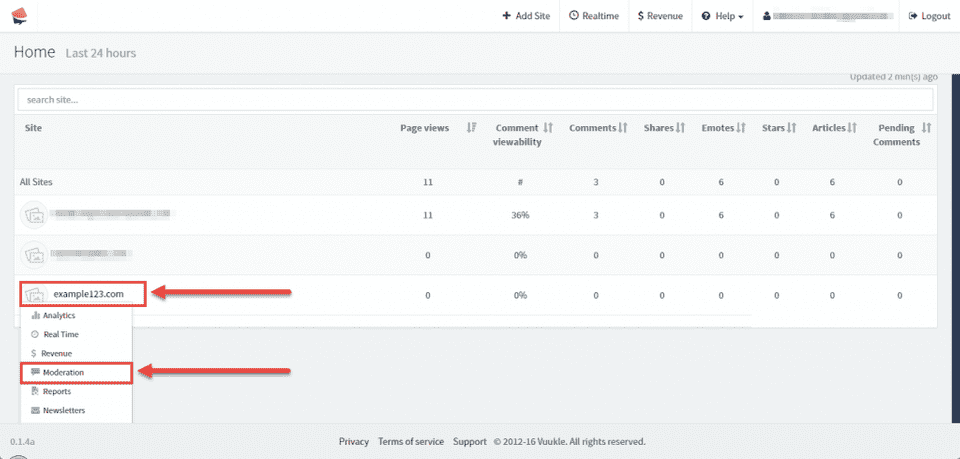
- Scroll down to View and click on Pending Comments
Step by step instructions with screenshots – check rejected comments
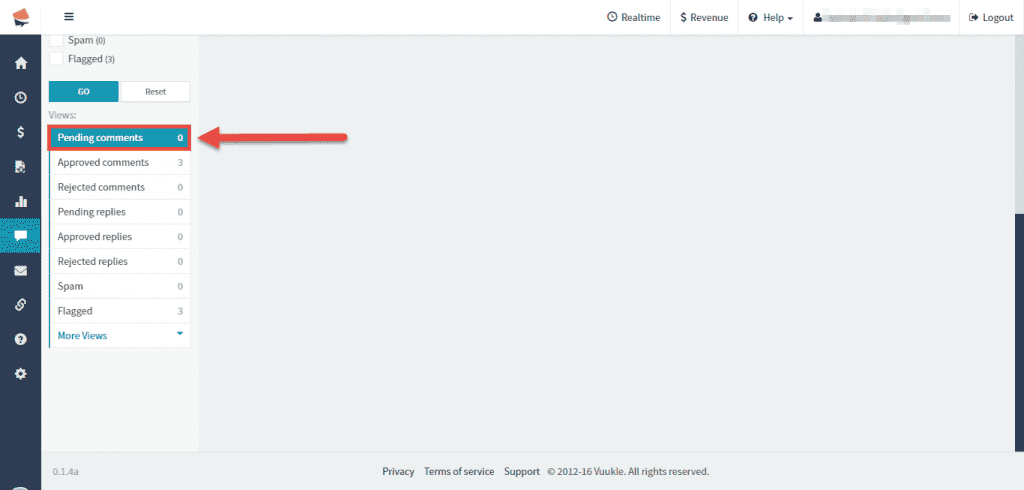
- Go to home page of Vuukle dashboard, select site, and click on Moderation
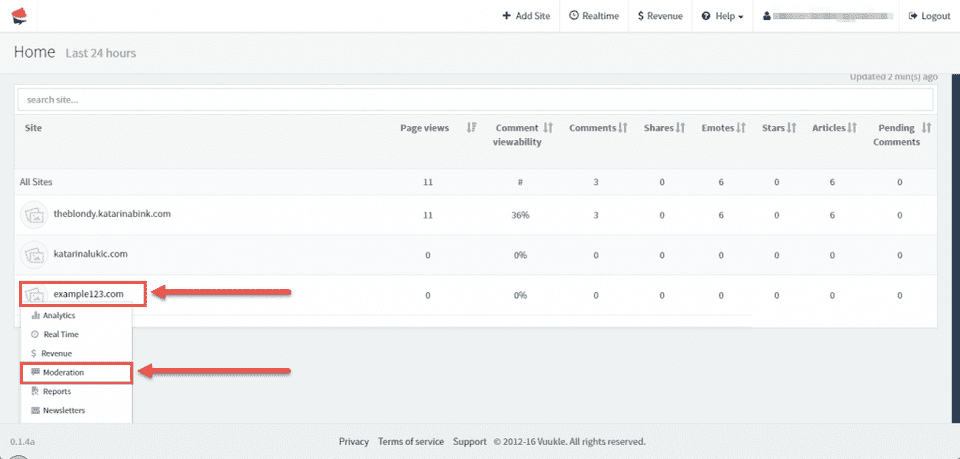
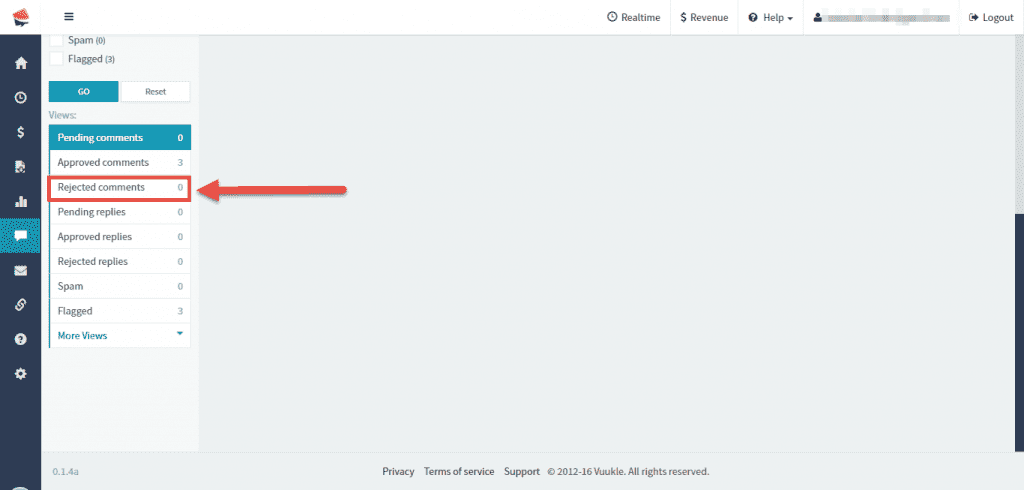
- Scroll down to View and click on Rejected Comments
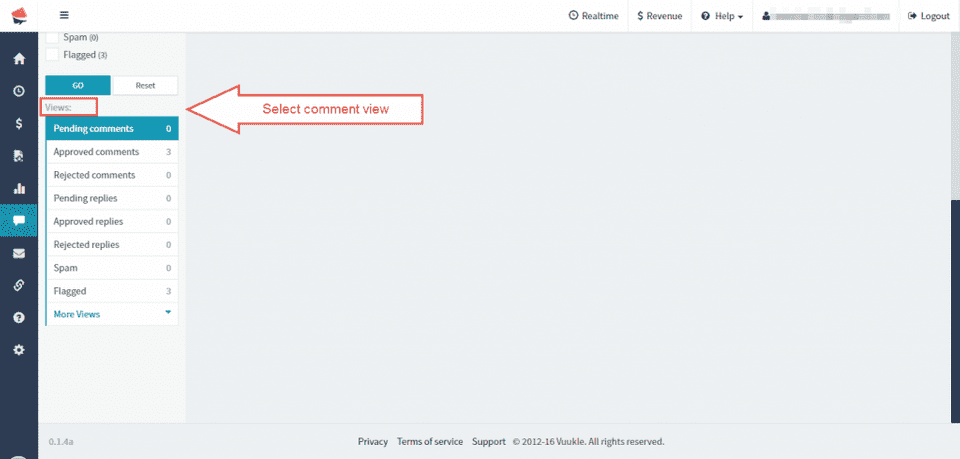
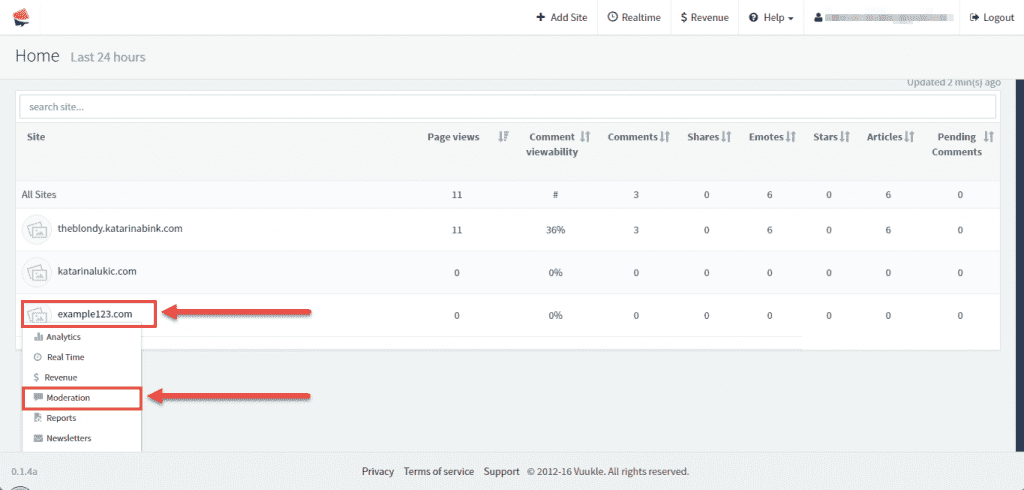
Step by step instruction with screenshots – edit comments
- On home page of your Vuukle dashboard, select your site, and choose Moderation.
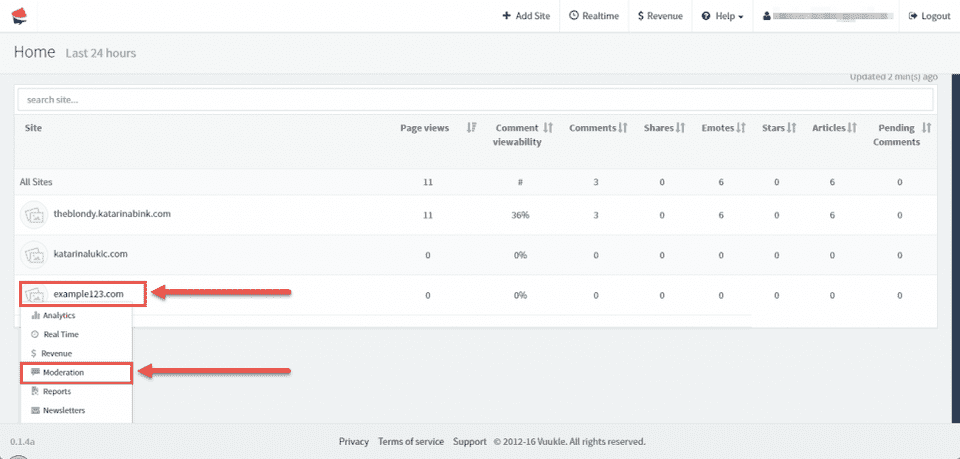
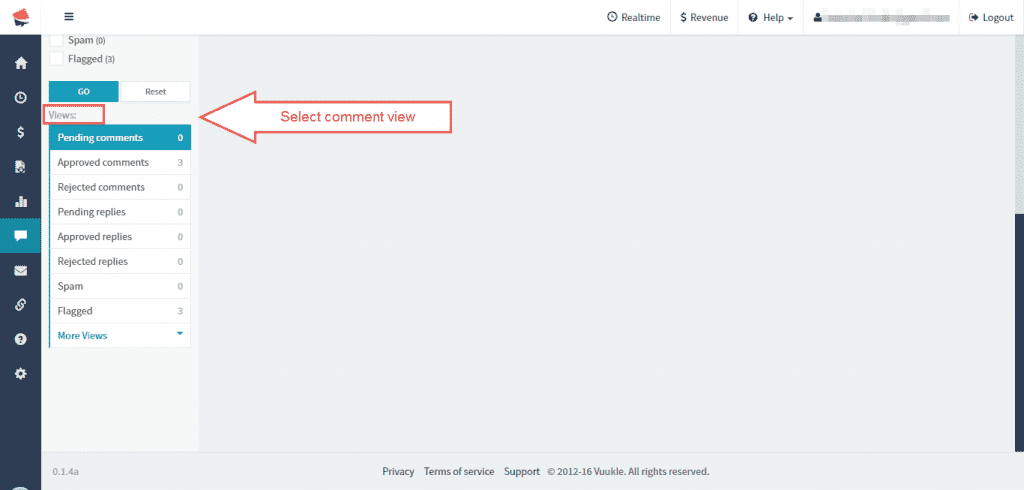
- Under View section, select one of the views offered. Hover your mouse over comment and Edit button will show up. Click on it to edit comment.
Step by step instructions with screenshots - filter comments by category or tags
- On home page of your Vuukle account, click on site you want to moderate comments on.
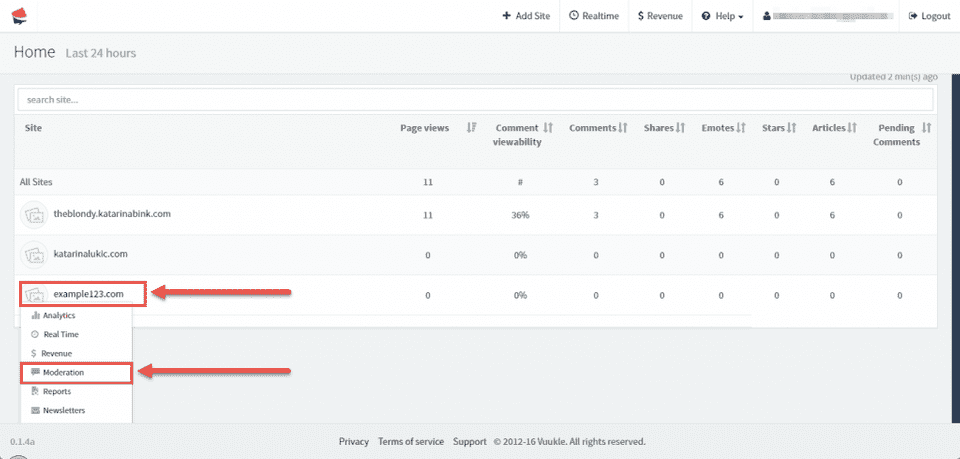
- On left side under Filter section select tag from drop down list, select categories, and click OK.
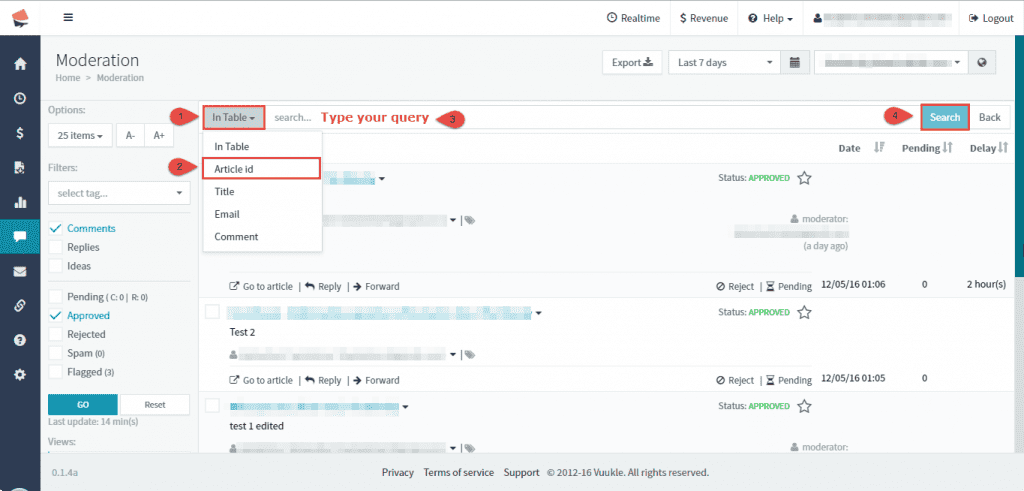
When moderating comments, if you want to search by article ID, go to home page of Vuukle dashboard, select site, and click on Moderation. Scroll down to View and select desired view.
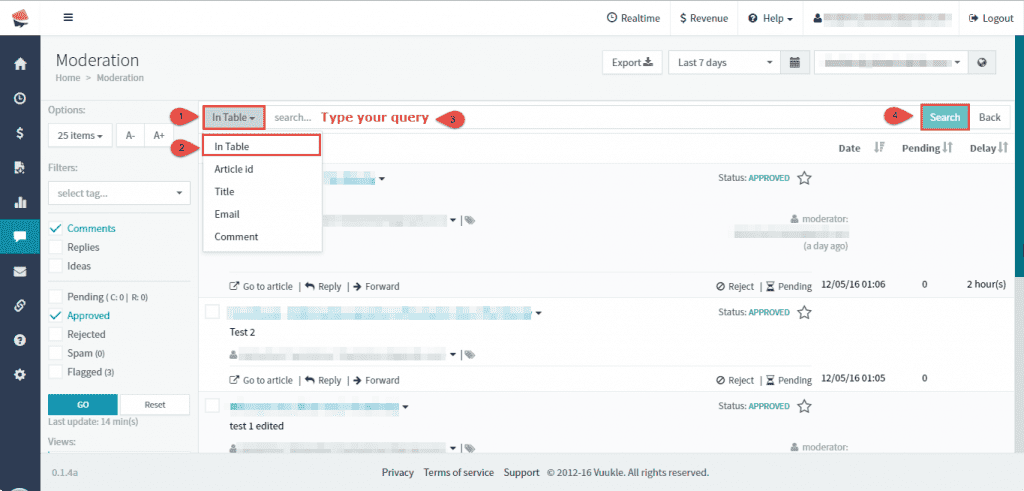
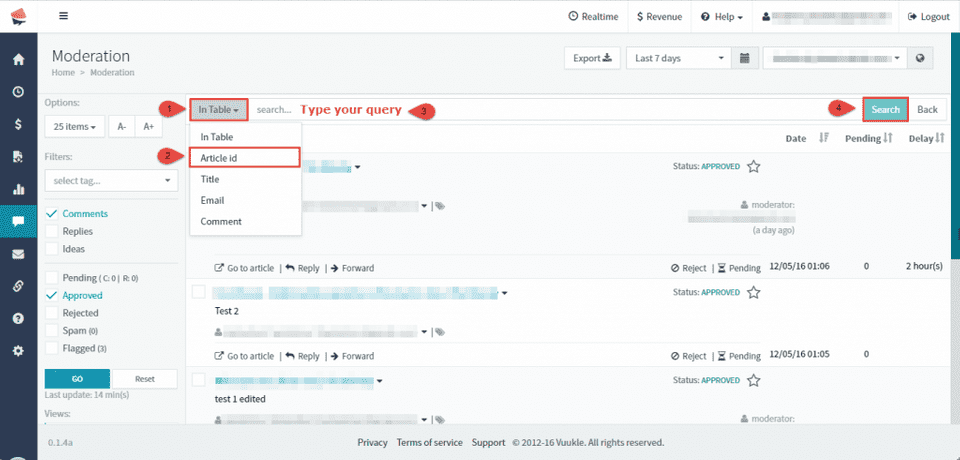
Clicking on In Table, drop menu will show. Choose Article ID, type your query in search bar, and click on Search button.
Step by step instructions with screenshots – Comments search by article ID
- Go to home page of Vuukle dashboard, select site, and click on Moderation.
- Scroll down to View and select desired view.
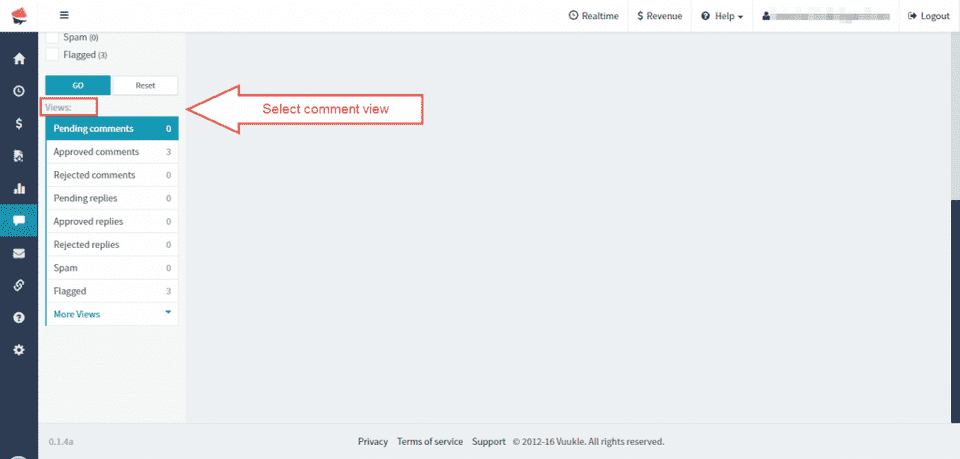
- Clicking on In Table, drop menu will show. Choose Article ID, type your query in search bar, and click on Search button.
When moderating comments, if you want to search by article title, go to home page of Vuukle dashboard, select site, and click on Moderation. Scroll down to View and select desired view.
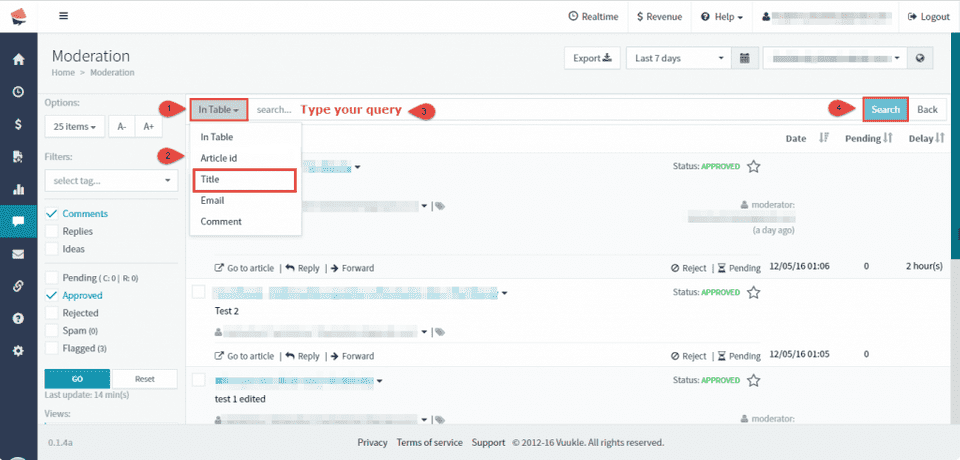
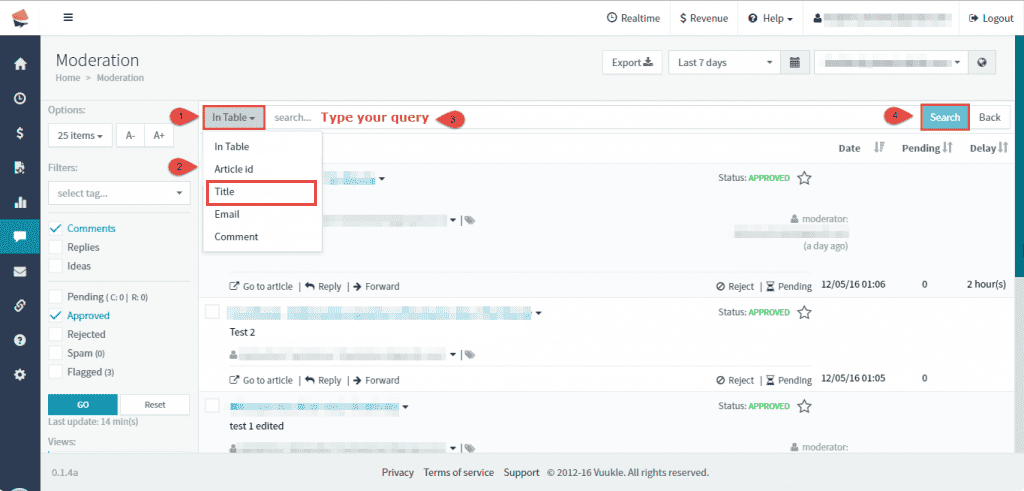
Clicking on In Table, drop menu will show. Choose Article title, type your query in search bar, and click on Search button.
Step by step instructions with screenshots – Comments search by article title
-
On the home page of Vuukle dashboard, select site, and click on Moderation.
-
Select desired view under View section.
- Click on In Table. In drop down menu, choose Article Title. Type your query in search bar, and click on Search button.
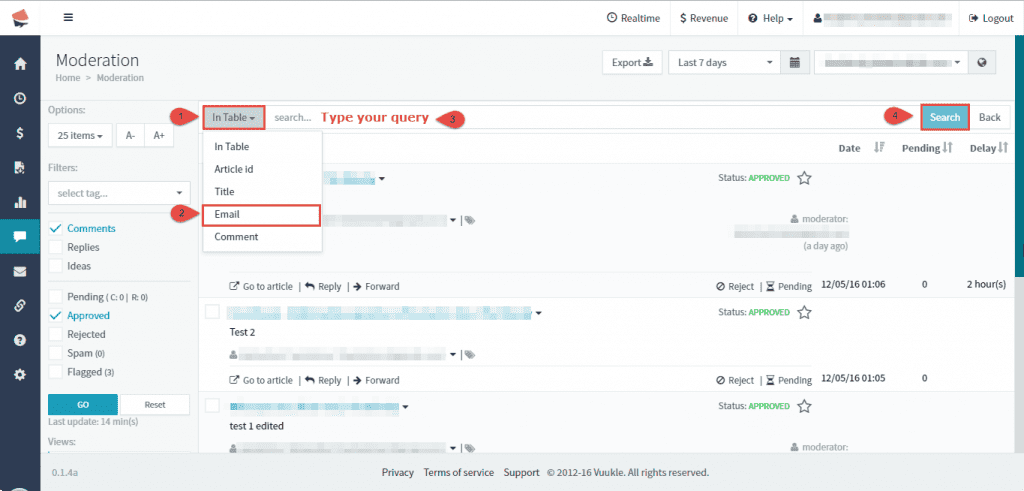
When moderating comments, if you want to search by commenters email, go to home page of Vuukle dashboard, select site, and click on Moderation. Scroll down to View and select desired view.
Clicking on In Table, drop menu will show. Choose Email, type your query in search bar, and click on Search button.
Step by step instructions with screenshots – Comments search by commenters email
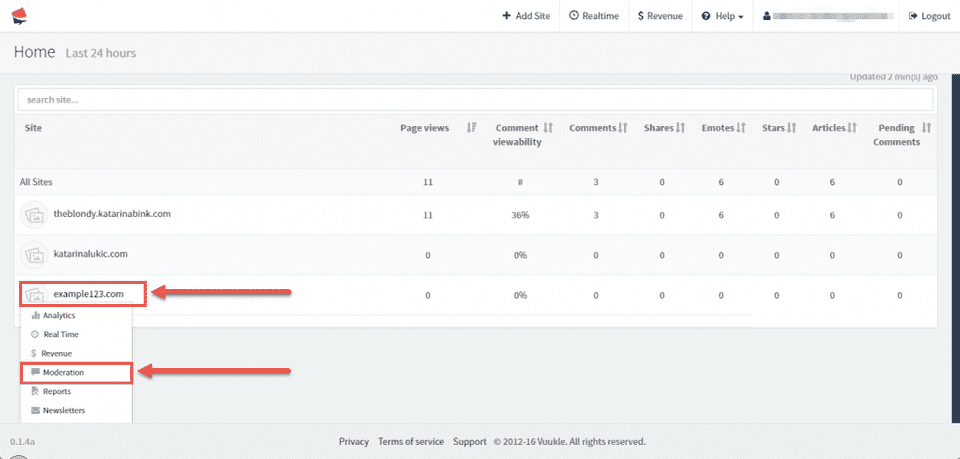
- Go to home page of Vuukle dashboard, select site, and click on Moderation.
- Scroll down to View and select desired view.
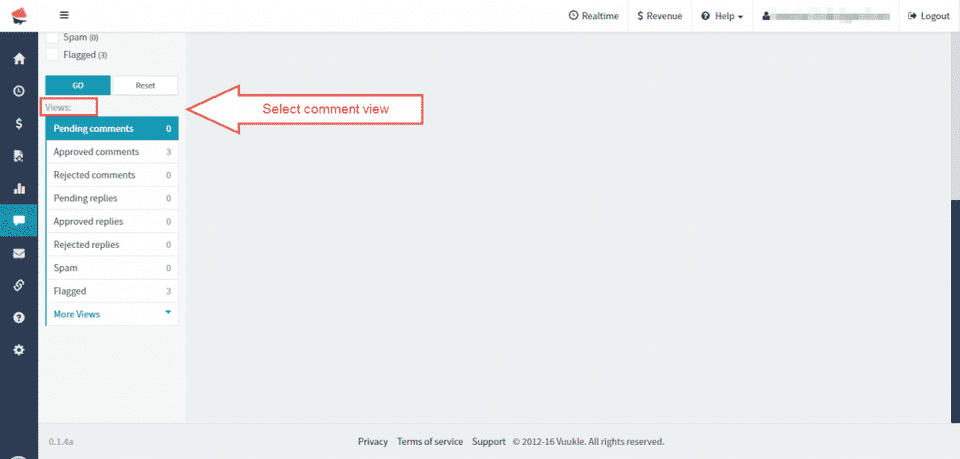
- Clicking on In Table, drop menu will show. Choose Email, type your query in search bar, and click on Search button.
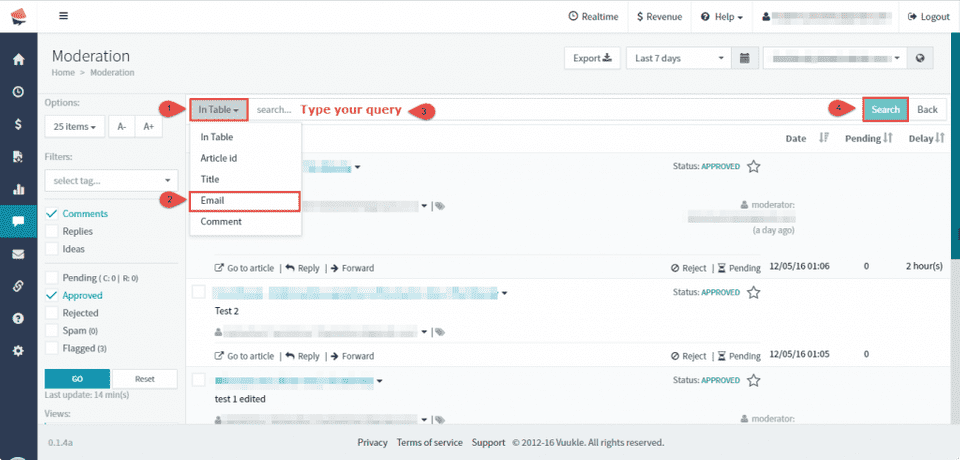
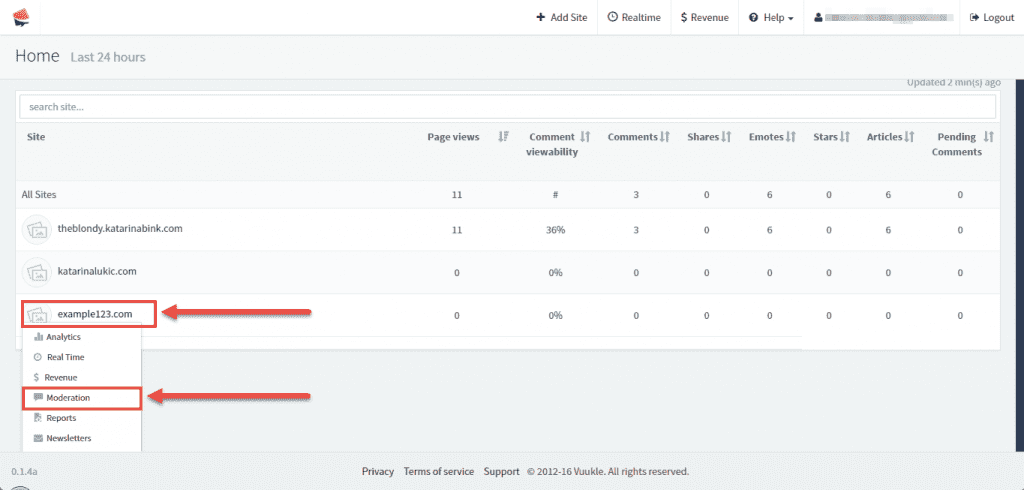
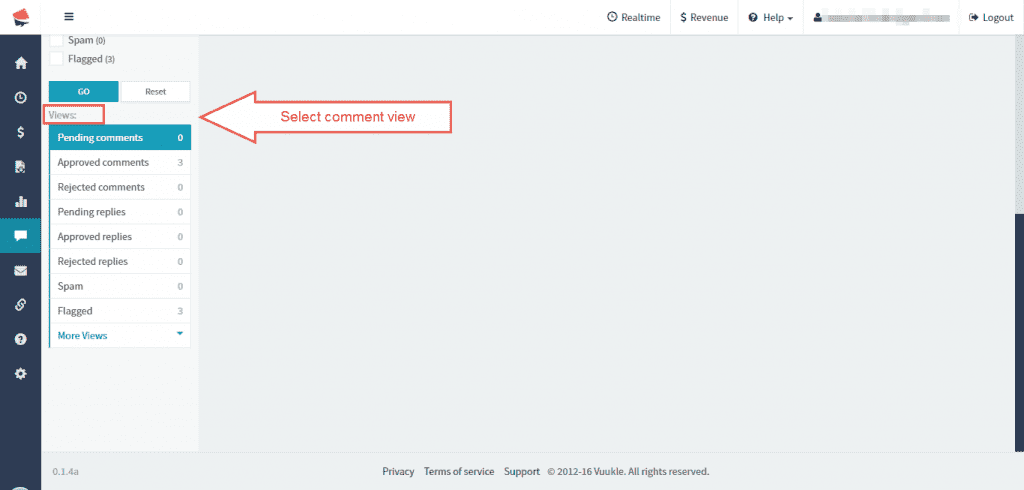
When moderating comments, if you want to search by comment text, go to home page of Vuukle dashboard, select site, and click on Moderation. Scroll down to View and select desired view.
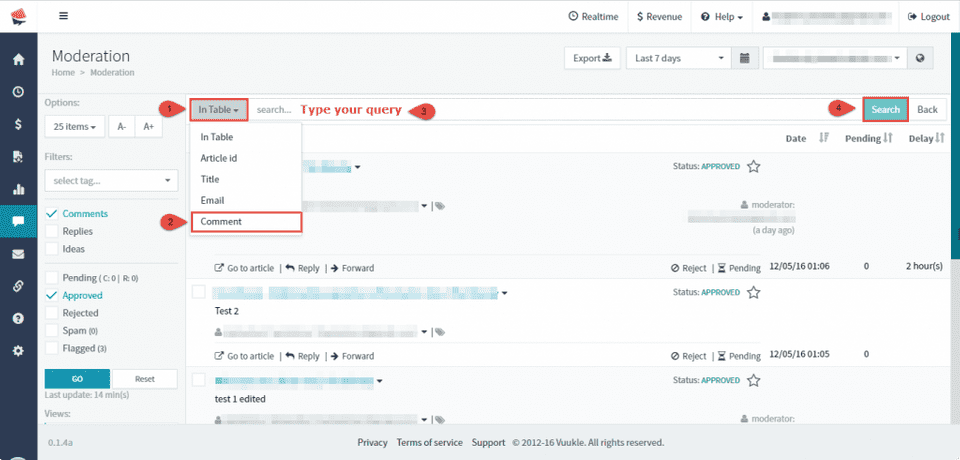
Clicking on In Table, drop menu will show. Choose Comment, type your query in search bar, and click on Search button.
Step by step instructions with screenshots – search by comment text
- Go to home page of Vuukle dashboard, select site, and click on Moderation.
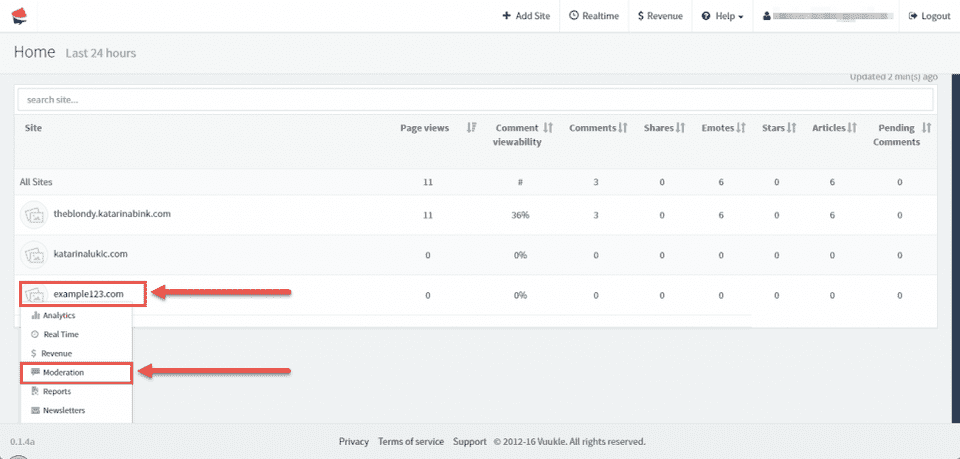
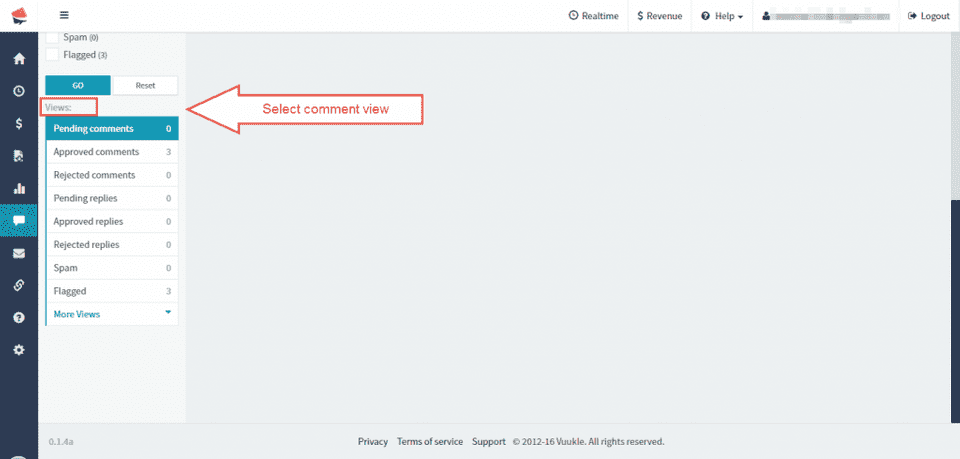
- Scroll down to View and select desired view.
- Clicking on In Table, drop menu will show. Choose Comment, type your query in search bar, and click on Search button.
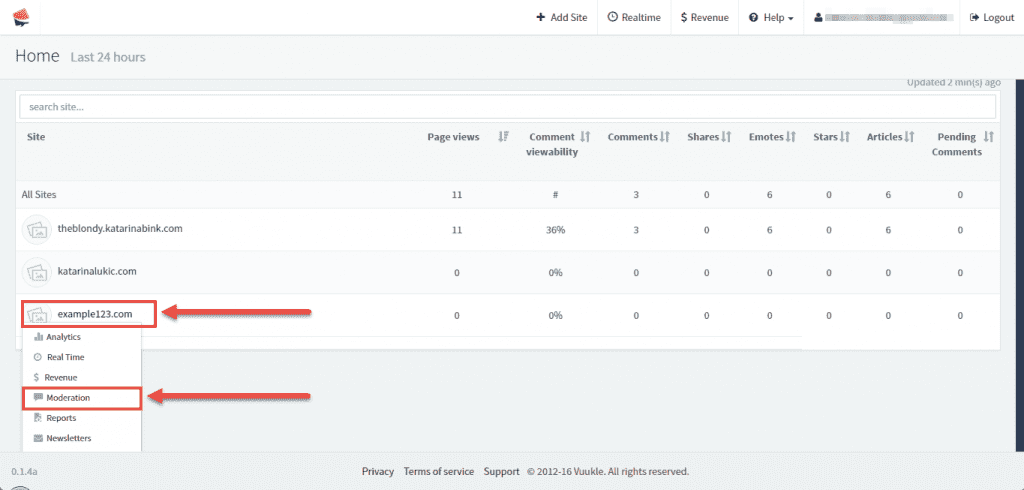
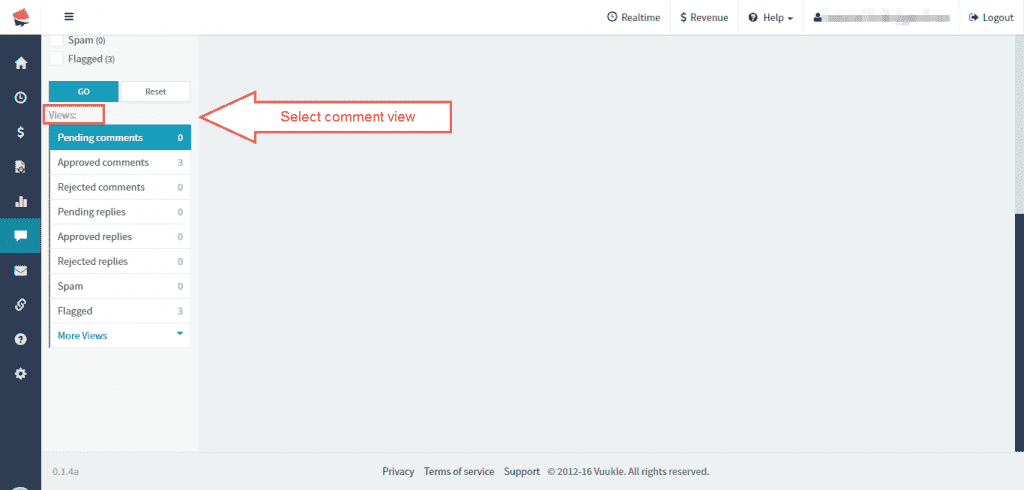
When moderating comments, if you want to search in table, go to home page of Vuukle dashboard, select site, and click on Moderation. Scroll down to View and select desired view.
Click on drop menu, choose In Table, type your query in search bar, and click on Search button.
Step by step instructions with screenshots – Comments search in table
- Go to home page of Vuukle dashboard, select site, and click on Moderation.
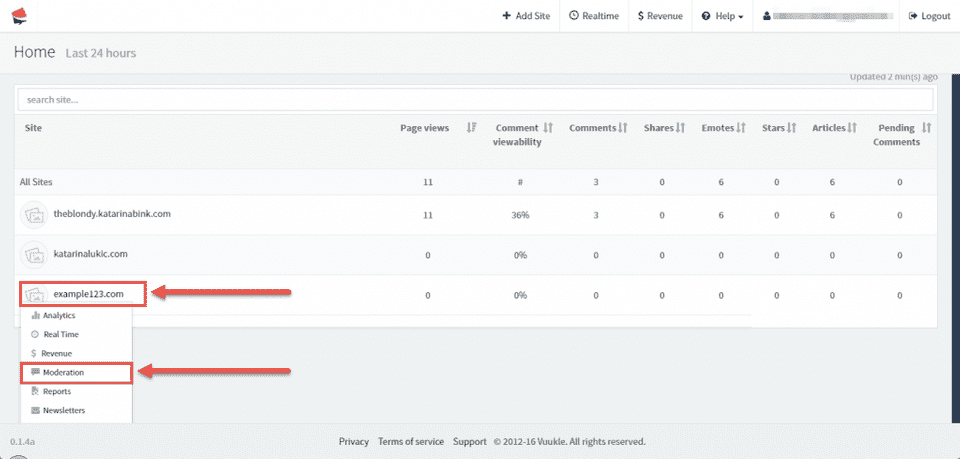
- Scroll down to View and select desired view.
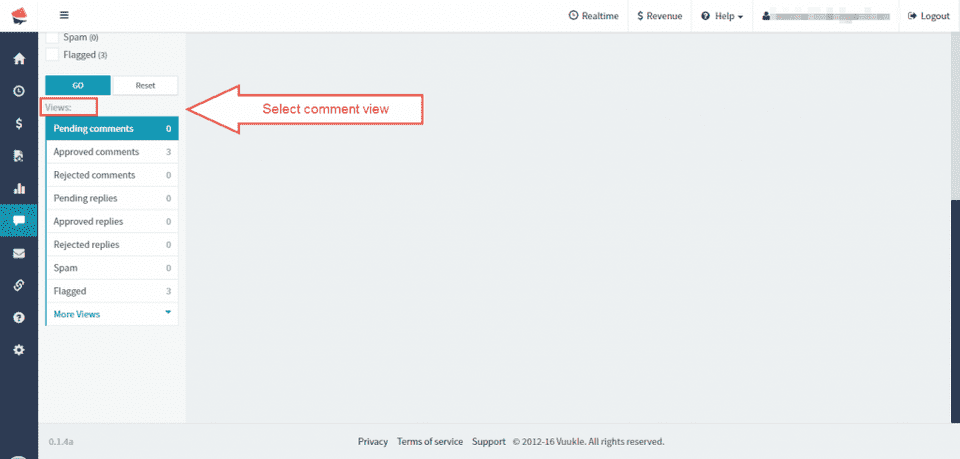
- Click on drop menu button. Choose In Table, type your query in search bar, and click on Search button.