Need help with Vuukle?🤔
This is the place you are looking for!
Comment widget and everything you need to know about it
widgetscommentswordpressjavascriptbloggerUpdated over a month ago
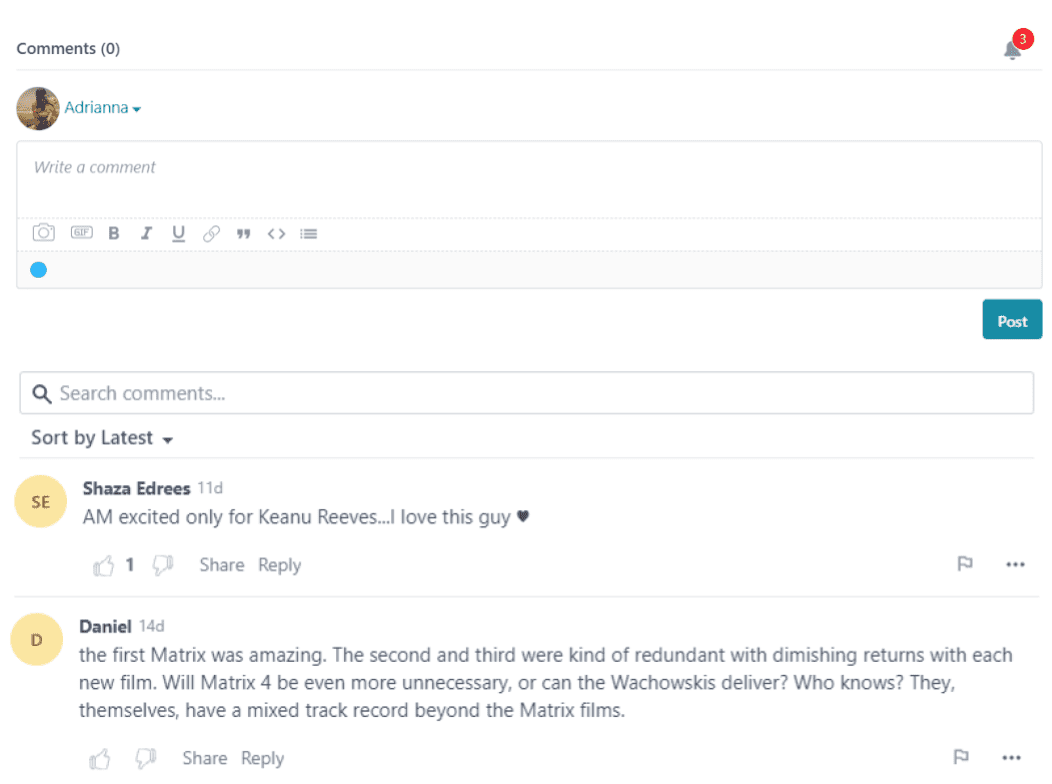
HOW TO ENABLE
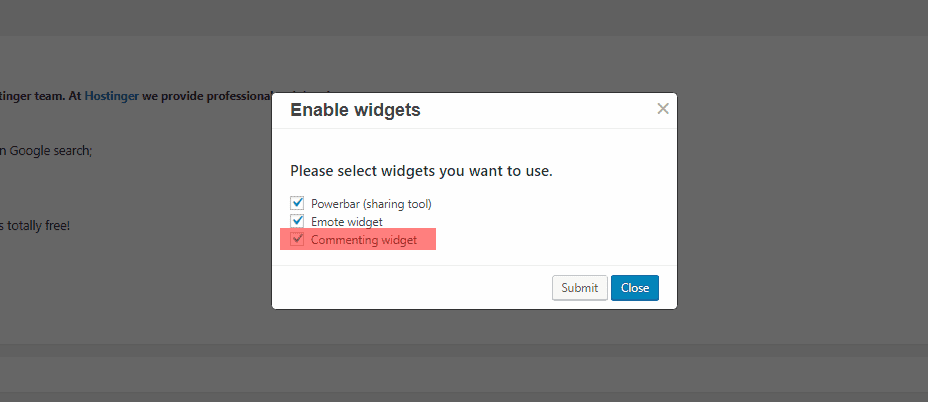
Enable Vuukle Comment widget using WordPress plugin:
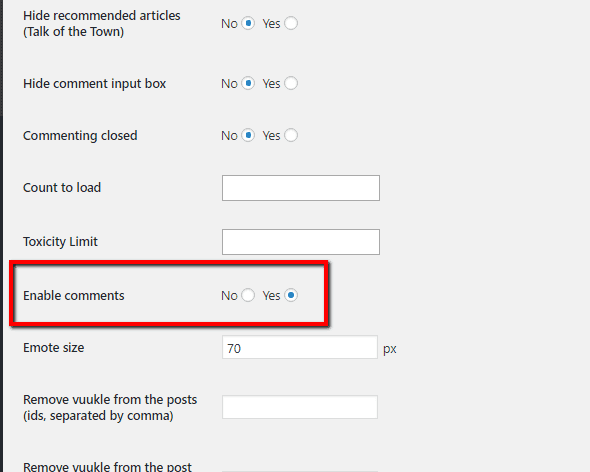
In your WordPress Admin panel, go into Settings > Vuukle and choose On for “Enable comments” in the “Advanced settings”
OR
For Blogger:
It’s auto enabled in blogger, please check integration article
You can disable comment widget by editing JS parameters in Blogger template.
More information below in JS variables section.
For JavaScript:
In your website�s HTML, insert the following code where you want the Comments widget to display
<div id="vuukle-comments" />HOW TO CUSTOMIZE
JS variables:
var VUUKLE_CONFIG = {
        comments: {
            transliteration: { //Enables transliteration
                language: "en",
                enabledByDefault: true,
            },
            auth: {
                facebook: false,
                google: false,
                twitter: false,
                disqus: true,
                password: true,
                vuukle: true,
            },
            editorOptions: ['image', 'gif', 'bold', 'italic', 'underline', 'url', 'blockquote', 'code', 'list'], // you can enable/disable ability to paste image or gif, choose the style of text
            hideRecommendedArticles: false, //Hides "Talk of the town" section
            hideMoreNews: true, // hide button 'Show more articles'
            hideCommentInputBox: false, // Hides Comment input field (can be expanded by pressing on the "add comment button")
            enabled: true, //Enables comment widget
            commentingClosed: false, // Closes commenting (Users can view already posted comments but can't post new ones)
            maxChars: 3000, //Comment char limit (You can set a limit up to 3000 characters)
            countToLoad: 10, // number of comments to load initialy on the page
            toxicityLimit: 80, // 1-99 - you can set how strict is the automoderation. 100 - disables the parameter
            spamLimit: 50, //1-99 - you can set how strict is the spam limit. 100  - disables the parameter
            hideCommentInputBoxWithButton: false, //Hides Comment input field (without "add comment button")
            sorting: latest / oldest //sorts by latest or oldest comments on initial loading
            customText: {}, // please check this article for custom texts https://docs.vuukle.com/how-to-do-language-customizations-if-using-js-implementation/
        },
        theme: {
            color: "#10e9ba",
            darkMode: true,
        },
    },
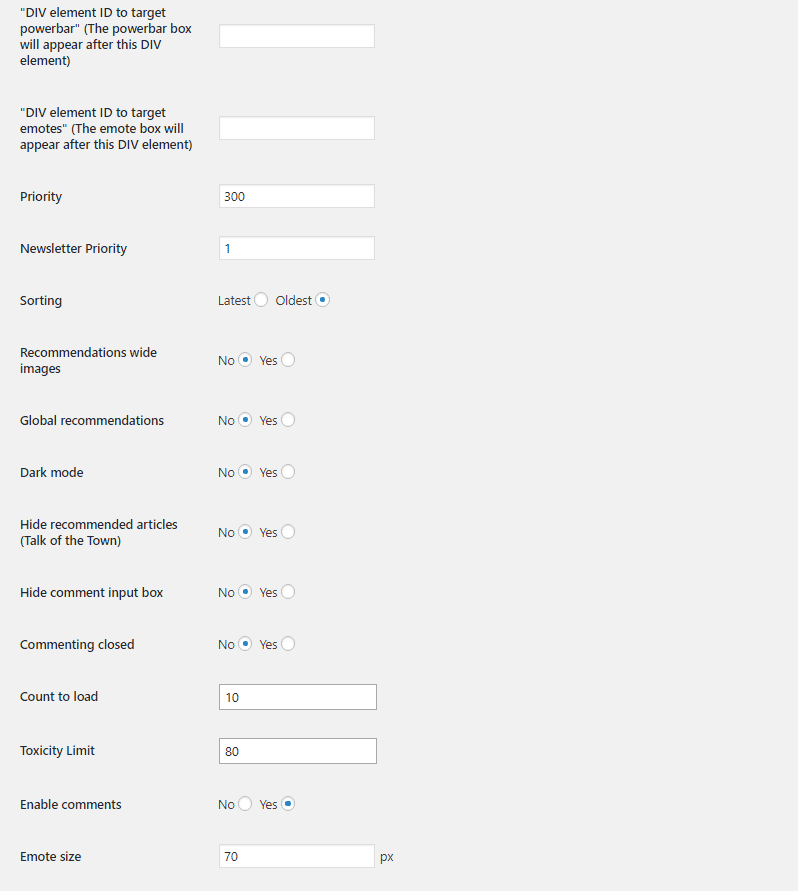
WordPress Settings
Same as the JS variable list but with User friendly settings look: