Need help with Vuukle?🤔
This is the place you are looking for!
At any moment, you can enable transliteration using WordPress or JS.
How to enable transliteration using WordPress
To enable transliteration just follow this few steps:
-
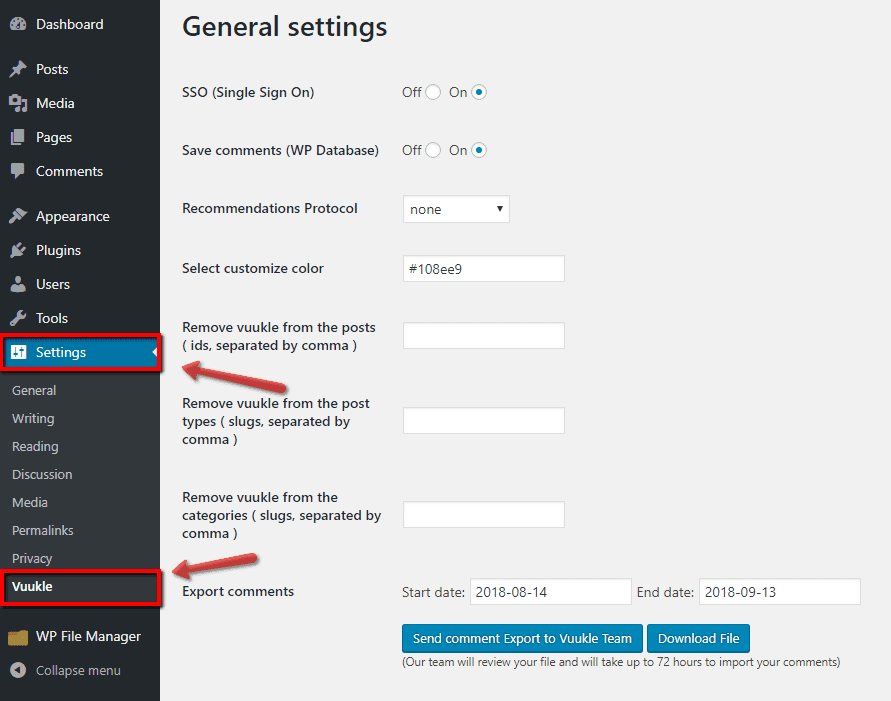
Go to WordPress admin page, click on Settings, and then on Vuukle.
-
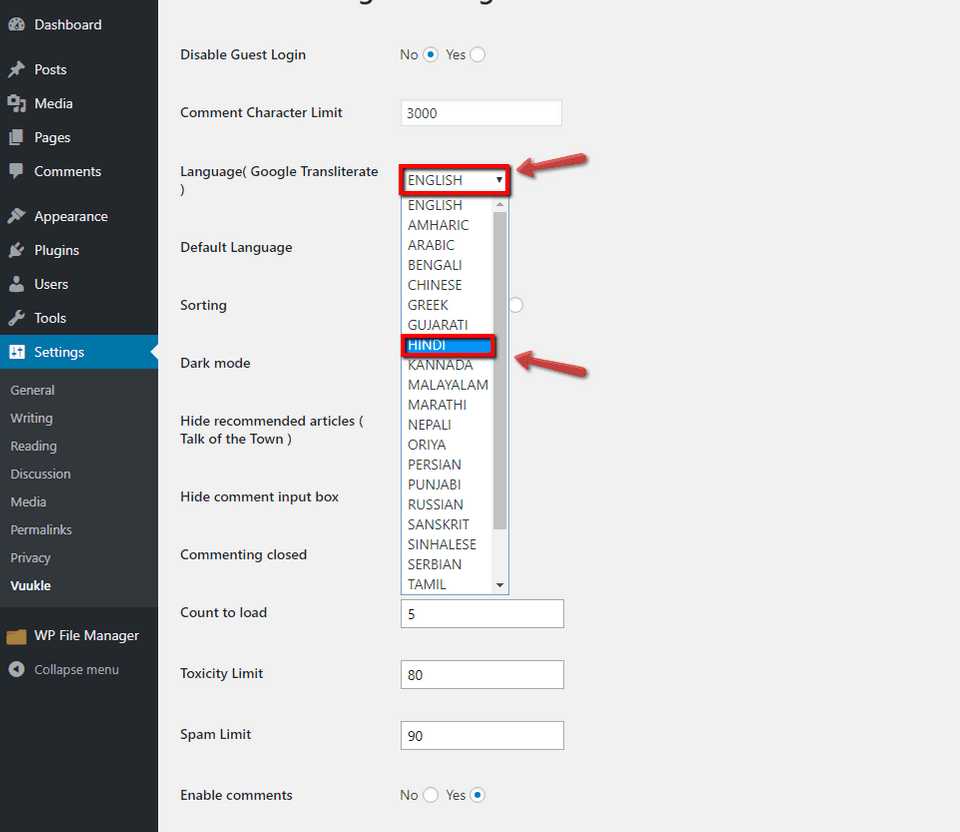
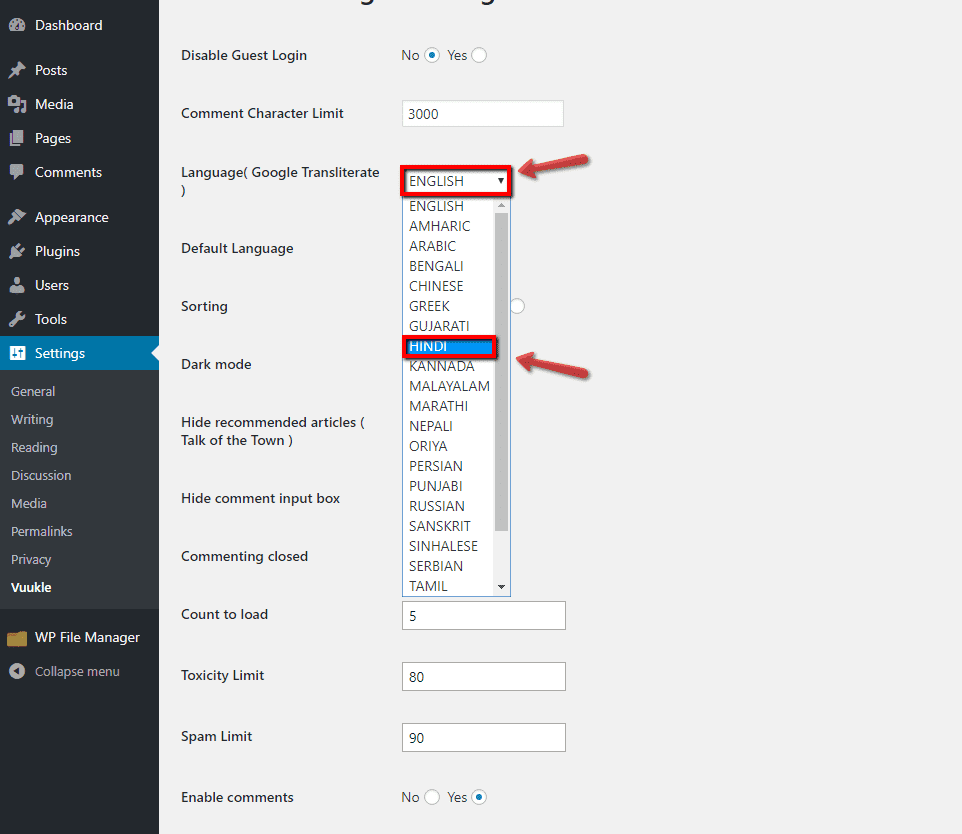
After scroll down to the ‘Language(Google Transliterate)’ settings and click on languages drop-down list to choose a needed language
-
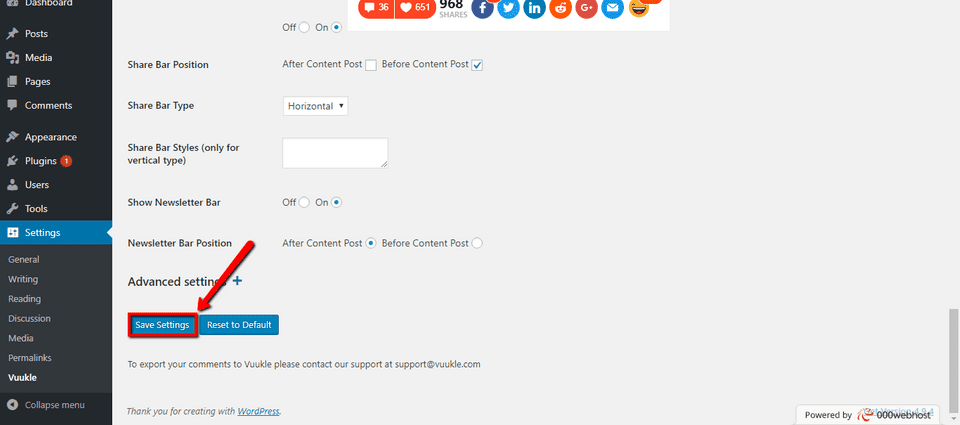
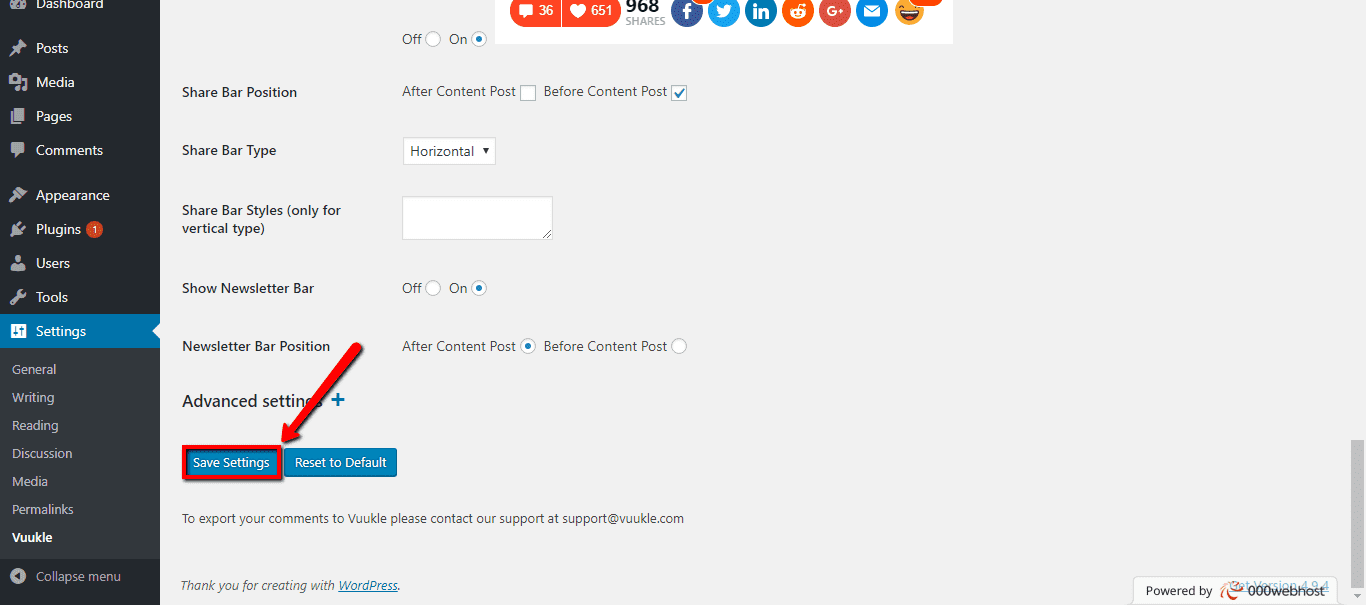
Scroll to the bottom of the page and click on the Save Settings
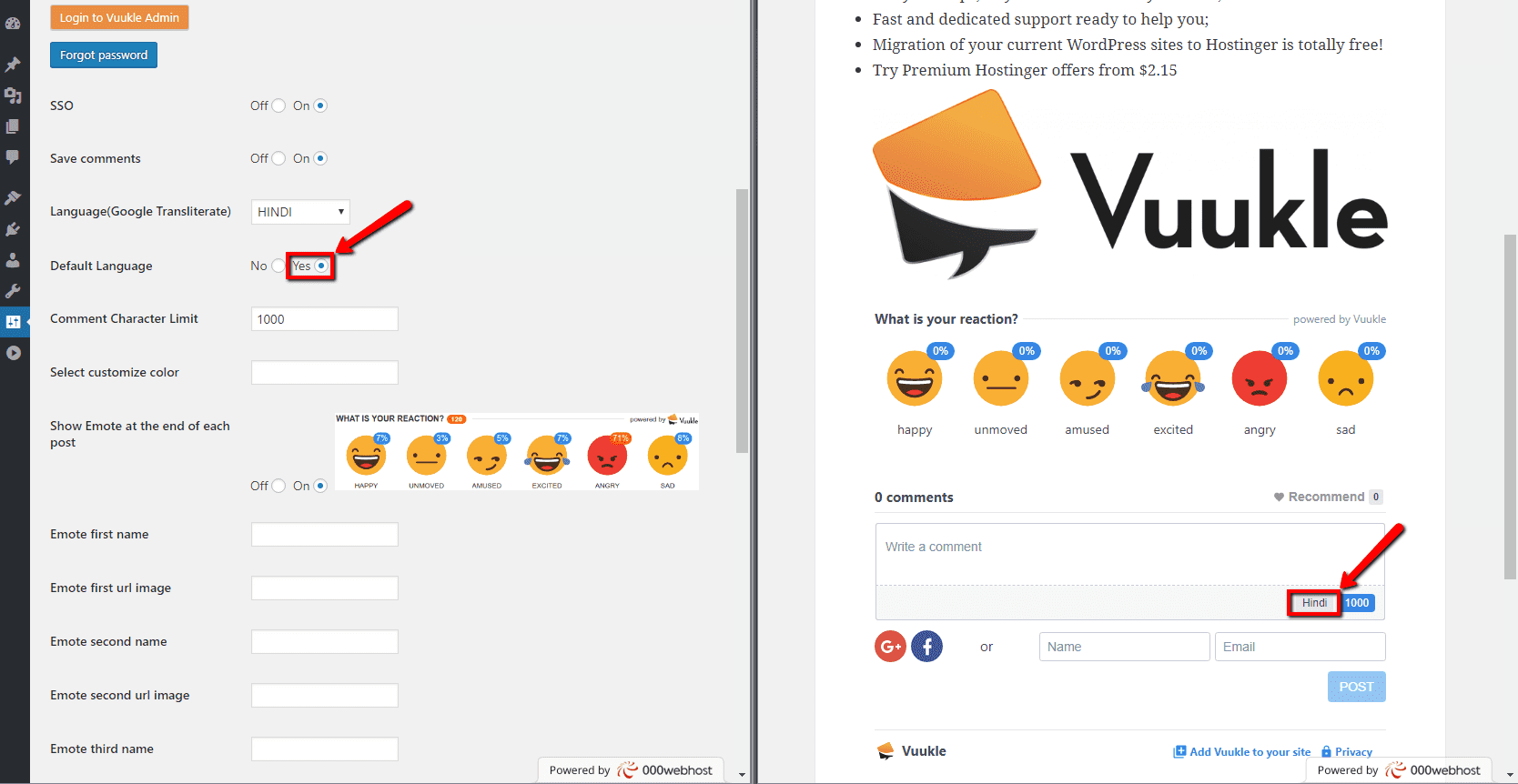
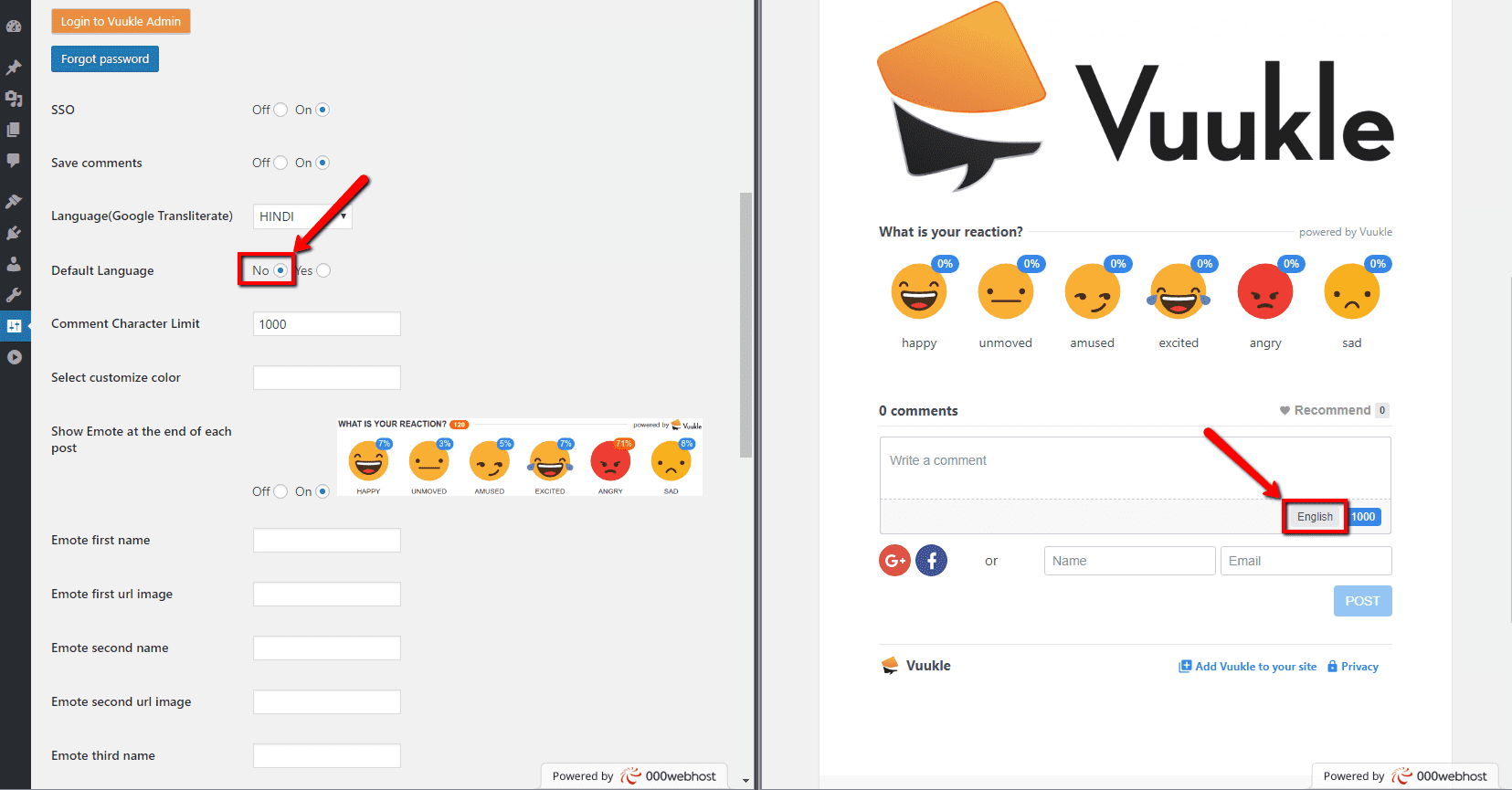
There are two ways how it would be working on article pages: The chosen language may be by default and by switching from English to chosen language.
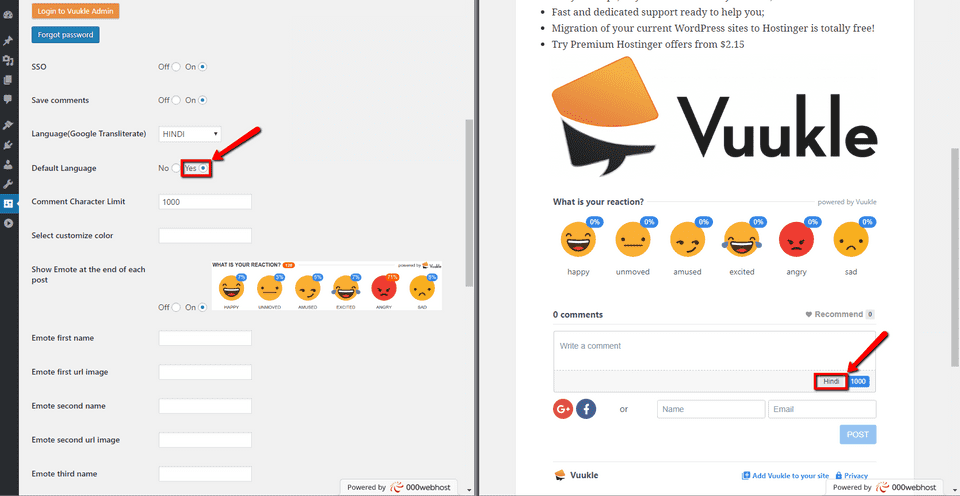
For using needed language by default just make sure that the ‘Default Language’ setting set to Yes.
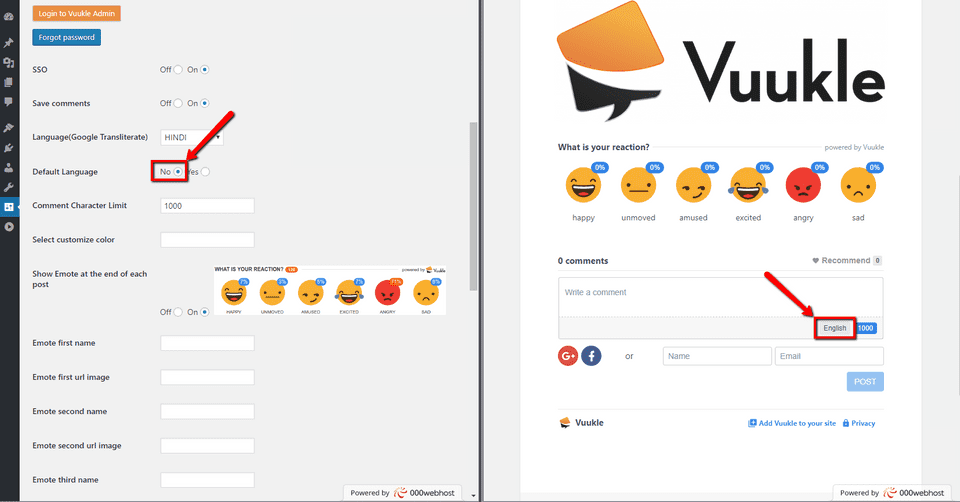
And in the case to use English with the possibility to switch to the needed language chose No for ‘Default Language’ setting.
When all settings set right scroll to the bottom and click on Save Settings.
How to enable transliteration using JS
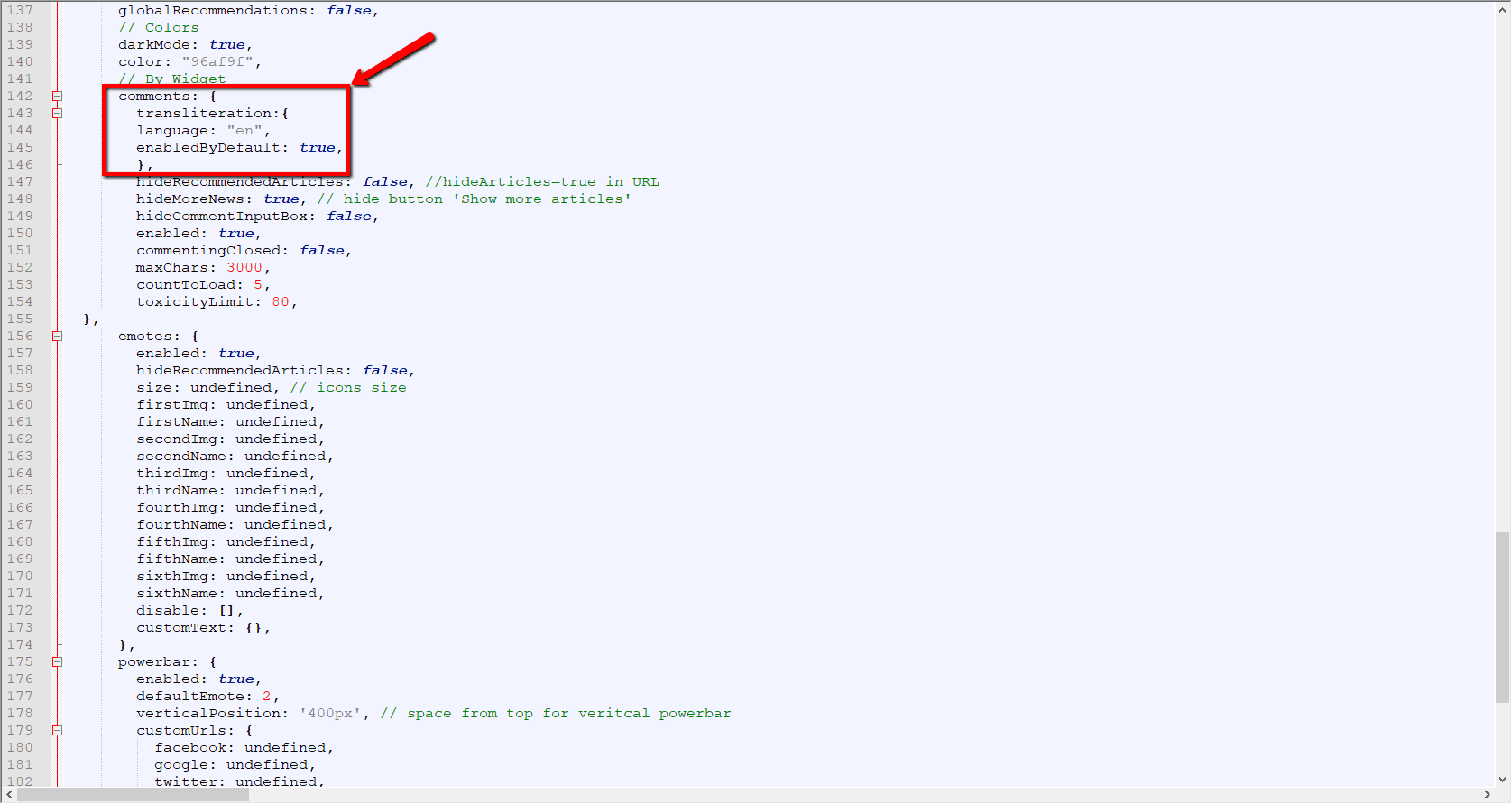
To enable transliteration using JS please paste following code to the Vuukle config:
comments: { transliteration:{ language: "en", enabledByDefault: true, },Languages abbreviation list:
English - en;
Amharic - am;
Arabic - ar;
Bengali - bn;
Chinese - zh;
Creek - el;
Gujarati - gu;
Hindi - hi;
Kannada - kn;
Malayalam - ml;
Marathi - mr;
Nepali - ne;
Oriya - or;
Persian - fa;
Punjabi - pa;
Russian - ru;
Sanskrit - sa;
Sinhalese - si;
Serbian - sr;
Tamil - ta;
Telugu - te;
Tigrinya - ti;
Urdu - ur.